Phishing emails are fake messages that try to steal your personal information. They may look like they come from your bank, a delivery company, or a friend. The goal is to get you to click a link, open an attachment, or send money. Many of these emails look very real at first glance. Seniors are often targeted because scammers think they are less familiar with online safety. But you can learn to spot these tricks. This guide will show you exactly what to look for. You can also review how to spot a tech support scam for similar warning signs.
According to the Federal Trade Commission, consumers reported losing over $10 billion to fraud in 2023. Many of those losses started with a phishing email. That means a single click can cost you your savings. The FTC also says that older adults lose more money on average when they fall for scams. Learning to recognize phishing is one of the best ways to protect yourself. You do not need to be a computer expert. You just need to slow down and check a few simple things.
This article walks you through eight clear steps. Each step explains one red flag to look for. You will learn how to check a sender’s email address, hover over links, and handle attachments. We will also show you how to report a phishing email in Gmail, Outlook, and Apple Mail. Along the way, we link to other TechGently guides like how to set up email and password safety for seniors. These articles help you build safe habits from the start.
Before you begin, remember that scammers change their tricks often. No single check catches every phishing email. Use all the steps together. If an email feels wrong, trust that feeling. You can always delete it or ask a family member. The safest approach is to never click anything in an unexpected email. Instead, go to the company’s website directly by typing the address yourself. For safe banking, see how to use online banking safely. Let us start with the most important rule: pause before you act.
How Do You Avoid Phishing Emails?
- Pause Before You Click or Reply
Scammers want you to act before you think. They send emails that say ‘Your account has been suspended’ or ‘You have a package waiting.’ The email may include a button that says ‘Verify now.’ When you feel rushed, your brain skips careful checking. That is exactly what the scammer wants. Take a deep breath and do not click anything. Real companies rarely send urgent threats by email. Even if the message looks official, you can always wait a few minutes to check.
A helpful habit is to read the email out loud. Does it sound strange? Does it demand immediate action? If so, close the email and open a new browser tab. Then type the company’s web address yourself. For example, if the email claims to be from your bank, type your bank’s website into the address bar. Do not use the link in the email. This simple step avoids most phishing traps.
Another common mistake is thinking a familiar logo means the email is real. Scammers copy logos, colors, and even email layouts from real companies. The logo proves nothing. To stay safe, treat every unexpected email as suspicious until you verify it another way. For related advice, see how to spot a tech support scam. Those scams also try to rush you.
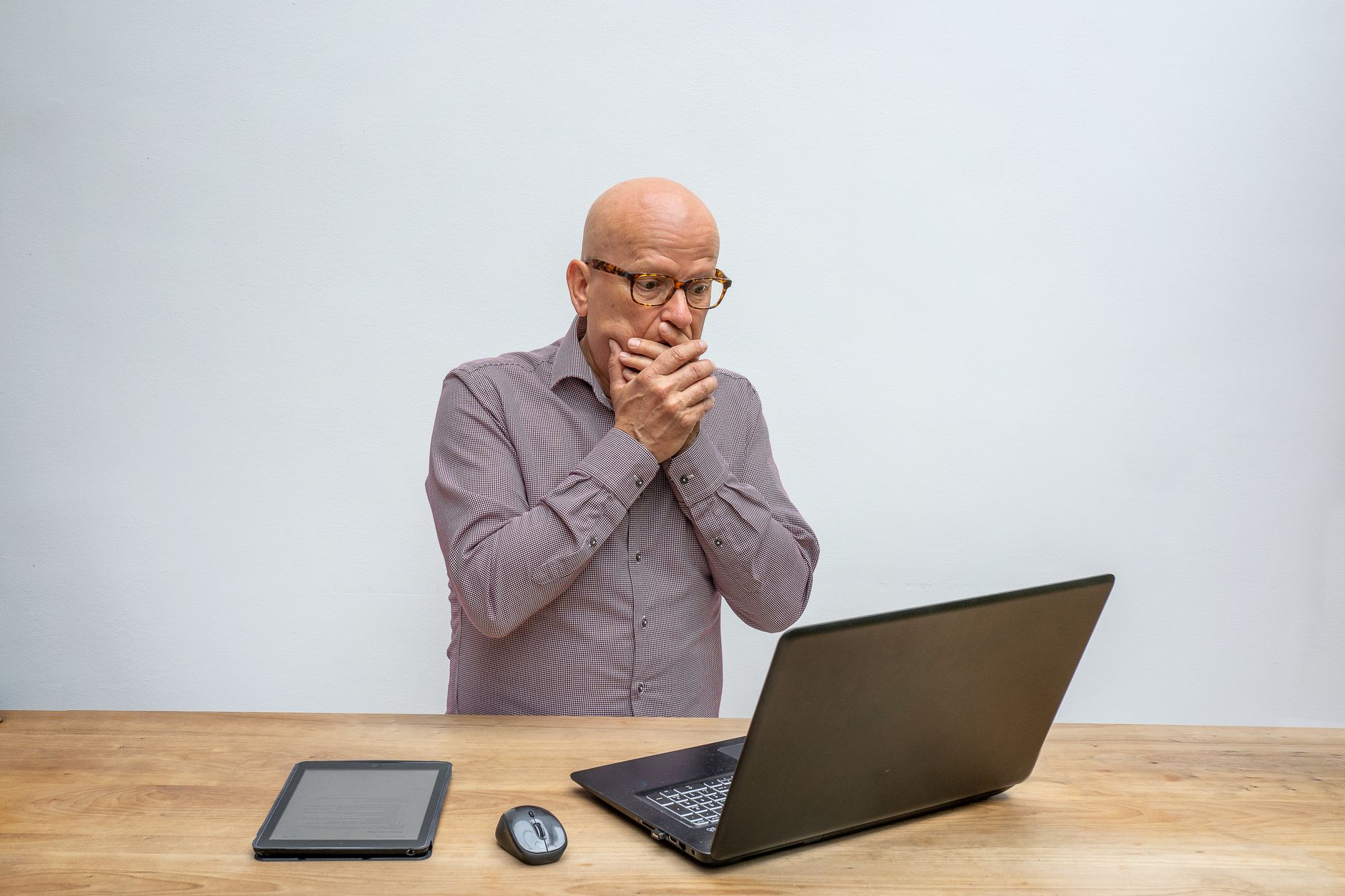
- Check the Sender’s Email Address Carefully
Tap or click on the sender name to see the full email address. On an iPhone or iPad, open the email and tap the sender’s name at the top. On an Android phone, tap the sender or the tiny arrow next to it. In Gmail on a computer, click the small down arrow under the sender’s name. This reveals the actual address behind the display name. The display name is what you see first, like ‘PayPal Security’. But the real address may be something like ‘security@paypa1.com’. Notice the number one instead of the letter L. That is a classic trick.
Scammers also use free email services like Gmail, Yahoo, or Outlook for fake business messages. A real bank will not send email from ‘bankname@gmail.com’. The part after the @ symbol should match the company’s official website. For example, an email from Amazon should end with @amazon.com. If it ends with @amazon-support.net, that is not Amazon. Google’s Gmail help page explains how to check the full sender address. You can also learn the basics of email apps in our guide on how to set up email.
Take your time with this check. Look for extra letters, missing letters, or words like ‘secure’ or ‘verify’ added to the domain. If anything looks off, delete the email. Do not reply, and do not click any links inside it.
- Look for Urgent or Threatening Language
Phishing emails often create a false emergency. They may say your account will be closed, your computer is infected, or your package is stuck. They use words like ‘urgent’, ‘immediately’, or ‘final notice’. This emotional push is designed to override your logic. Legitimate companies do not send threatening emails. They also do not ask you to confirm your password, credit card, or Social Security number by replying to an email.
According to AARP, older adults are frequent targets of fraud that uses fear and urgency. Scammers know that seniors may worry about losing access to accounts or facing penalties. If an email makes you feel scared or pressured, that is a red flag. Write down the claim. Then call the company using a phone number from your paper statement or the official website. Do not use the phone number in the email.
A good rule is to never make a decision within the first hour of receiving an urgent email. Most real problems can wait. Banks, government agencies, and delivery services allow you days or weeks to respond. If the email demands action within minutes, it is almost certainly a scam. For more on scam calls, see how to block scam calls.
- Hover Over Links to See Where They Really Go
On a computer, hover your mouse pointer over the link without clicking. A small box appears at the bottom left of the screen showing the true web address. On a phone or tablet, press and hold the link with your finger. A preview window pops up with the full URL. This trick reveals where the link actually goes, not where the text says it goes.
Scammers hide fake websites behind innocent-looking text. The email may say ‘Click here to verify your account.’ But the actual link could be ‘www.paypal.com.verify-account.info’. Notice that the real domain is ‘verify-account.info’, not ‘paypal.com’. Any link that ends with a random domain or includes extra words after the real name is suspicious. Also watch for slight misspellings like ‘paypa1.com’ or ‘amaz0n.com’.
When you see a link that does not match the company name, delete the email. Do not click it, even out of curiosity. Some fake websites look exactly like the real ones but are designed to steal your login. For safe online banking steps, read how to use online banking safely. That guide shows how to log in without using email links.
- Watch for Spelling and Grammar Mistakes
Many phishing emails come from scammers who do not speak English well. They often use translation software or write quickly. The result is odd phrasing, grammar mistakes, and misspelled words. Legitimate companies hire editors to proofread their messages. A real email from your bank will rarely say ‘Dear Customer, your account has been temporary limited, please to click link below.’ The extra ’to’ and the vague greeting are giveaways.
Scammers also avoid using your real name. They write ‘Dear User’ or ‘Dear Customer’ because they do not know who you are. Real companies that you have an account with will usually address you by name. If the email does not use your name, be more careful. That said, some phishing emails do include your name if they bought it from a data breach. So this check alone is not enough.
Spelling mistakes are becoming less common as scammers improve. Do not rely only on grammar. Combine this check with the sender address and link checks. For extra security, use strong passwords and two-factor authentication. See password safety for seniors for step-by-step advice.
- Be Careful with Attachments You Did Not Expect
Attachments are one of the most dangerous parts of an email. A file that looks like an invoice, a receipt, a voicemail, or a scanned document can contain a virus. When you open the attachment, the virus may install itself on your computer or phone. It can then steal passwords, lock your files, or spy on you. Never open an attachment you were not expecting.
Common tricks include fake delivery notifications with attachments like ‘Shipping Label.pdf.exe’. The .exe part means it is a program, not a document. But even a real PDF can carry a virus. If you did not order anything, ignore the email. If you are expecting an attachment from someone, call them first to confirm they sent it. Do not rely on the email itself.
Scammers also send attachments through social media messages and texting apps. The same rules apply. Be wary of any file you did not ask for. To stay safe on platforms like Facebook, read how to stay safe on social media. That guide explains how to avoid fake profiles and dangerous links.

- Verify Requests for Money or Personal Information
Any email that asks for your password, bank PIN, Social Security number, or credit card number is a scam. Legitimate companies never ask for these by email. They also never ask you to buy gift cards or wire money to solve a problem. If an email says ‘Your account is locked, send $200 in Apple gift cards to unlock it’, that is a classic phishing and fraud attempt.
If the email appears to be from your bank, do not reply. Instead, log into your account by typing the bank’s official web address into your browser. You can also call the number on the back of your bank card. Never call a number in the email. That number belongs to the scammer. For safe online banking habits, see how to use online banking safely.
Requests for personal information can also come over the phone. If an email asks you to call a number to verify your account, do not call it. Look up the real number yourself. To stop unwanted calls, learn how to block scam calls. Remember, your bank will never ask for your PIN or password.
- Report and Delete the Phishing Email
Reporting a phishing email helps your email provider block the scammer. It also protects other people. In Gmail, open the email and click the three vertical dots in the top right. Then choose ‘Report phishing’. In Outlook or Hotmail, select the message and click ‘Report message’ under the toolbar. Then choose ‘Phishing’. On Apple Mail, you can mark the email as Junk or forward it to reportphishing@apple.com. Google’s Gmail help page and Microsoft’s support site both explain these steps.
After you report the email, delete it from your inbox and your trash folder. Do not click ‘unsubscribe’ on a phishing email. That only tells the scammer your email address is active. Do not reply, and do not forward the email to friends unless you are asking them for help. Forwarding to a tech-savvy family member is okay if you need a second opinion.
You can also file a complaint with the Federal Trade Commission at ReportFraud.ftc.gov. The FTC uses these reports to track scams and warn the public. For more scam prevention tips, see how to spot a tech support scam and how to block scam calls.
Red Flags & Warnings
- 🚨 Never click a link in an email that asks you to verify your account. Instead, go to the website by typing the address yourself.
- 🚨 Do not open attachments from unknown senders, even if the file name looks like a PDF or Word document. They can install malware.
- 🚨 Be suspicious of any email that says you won a prize or lottery you never entered. It is a scam.
- 🚨 Never send money, gift cards, or cryptocurrency to someone who emailed you asking for help. Real friends and family will not ask that way.
- 🚨 If an email claims to be from your bank and asks for your PIN or password, it is always a phishing attempt. Banks never ask for these by email.
Frequently Asked Questions
How do I know if an email is really from my bank?
Check the sender’s full email address. Then call the bank using the phone number on your bank statement, not the number in the email. Do not click any links. Log in to your account by typing the official website yourself.
What should I do if I clicked a link in a phishing email?
Stay calm. Immediately change your password on the real website. Turn on two-factor authentication if available. Run a virus scan on your device. Then report the email as phishing.
Can I just delete a phishing email without reporting it?
You can, but reporting helps email providers block the sender and protect others. Reporting is quick and safe. In Gmail, use the Report phishing option. In Apple Mail, mark as Junk.
Why do phishing emails have spelling and grammar mistakes?
Many scammers do not speak English well. They also use translation tools. Mistakes help them avoid spam filters, but they also reveal the scam to careful readers. Still, some phishing emails are well written, so look for other signs.
What is the safest way to check my account status?
Open a new browser tab and type the company’s web address yourself. Do not use a link from an email. Bookmark your bank and email login pages for safe access.
Are seniors targeted more by phishing emails?
Yes, scammers often target older adults because they may be less familiar with digital security. The AARP reports that people over 50 lose more to certain scams. Learning these signs can protect you.
What Should You Remember?
- Pause first: Never click or reply while feeling rushed or scared. Scammers rely on urgency.
- Check the sender: The display name can be faked. Look at the full email address for misspellings or wrong domains.
- Hover links: On a computer, hover without clicking to see the true web address. On a phone, press and hold.
- Verify separately: If an email claims a problem with your account, go to the official website or call the number on your statement.
- Never share secrets: Real companies will not ask for passwords, PINs, or Social Security numbers over email.
- Report then delete: Use the built-in phishing report in Gmail, Outlook, or Apple Mail. Then delete the message.
This article is for general informational purposes only and is not medical, financial, or professional advice. Statistics and product details change, so verify current figures with the cited source before acting. Some links may be affiliate links that support this site at no cost to you.