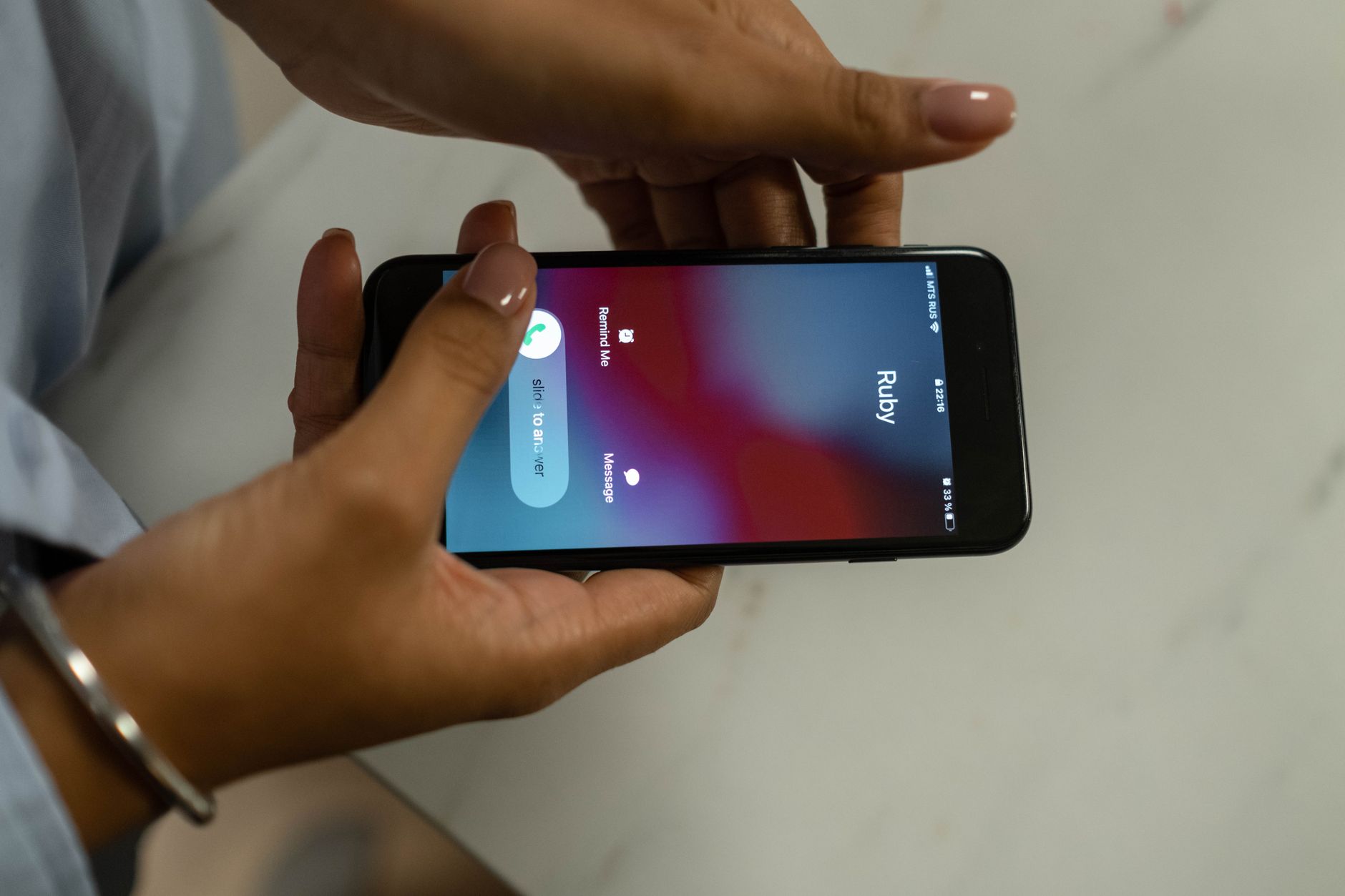
Scam calls are worse than ever. Your phone rings, and the number looks local. The caller says your bank account is frozen. Or your Social Security number is suspended. These are lies. Scammers use fear to steal money and personal details. According to Pew Research Center, 61% of adults aged 65 and older own a smartphone. That makes older adults a big target for phone scams. You are not alone if you want the calls to stop. You also have more control than you think.
The good news is that modern phones have strong built-in tools. Apple and Google both added call screening features. Carriers like AT&T, Verizon, and T-Mobile also offer free spam blockers. You do not need to be a tech expert to use these tools. If you are just setting up a new device, start with our guides for how to set up a new iPhone or how to spot a tech support scam. These guides show you the basics before you add scam call protection.
This guide walks through each step in plain English. We cover iPhone settings, Android settings, carrier tools, and safe habits. You will learn how to silence unknown callers, report fraud, and add a trusted blocker app. Always remember that a legitimate company never asks for gift cards or remote access to your computer. See how to spot a tech support scam for more warning signs. That page explains common tricks used by fake tech support callers.
At the end, you will have a system that stops most scam calls before they interrupt your day. You will also know what to do if a few still get through. The FTC collects complaints about unwanted calls and uses them to shut down fraud rings. You can file a report online in about five minutes. Let’s start with the basics. No single setting blocks every call, but the combination below gets close. Even one small change can reduce the noise.
What You’ll Need
- An iPhone running iOS 13 or newer or an Android phone running Android 10 or newer
- Your phone passcode or unlock method
- Your carrier account login for online or app access
- A trusted call blocker app from the official App Store or Google Play (optional)
How Do You Best Ways to Block Scam Calls on iPhone and Android?
- Check your phone type and update your software.
Before you change any settings, make sure your phone runs the latest software. On an iPhone, open Settings, tap General, then Software Update. On Android, open Settings, tap System, then System update. Updates fix known security holes that scammers sometimes exploit. They also give you the newest call blocking tools. Apple’s Silence Unknown Callers and Google’s spam filter have improved with recent versions. If an update is waiting, connect to Wi-Fi and install it. The phone may restart. Do not worry; your photos and contacts stay safe.
Check which system version you have. iPhones need iOS 13 or newer for Silence Unknown Callers. Most Android phones need Android 10 or newer for the built-in spam filter. If your phone is older, you can still block numbers one by one. But a newer system gives you stronger automatic protection. If you just bought a device, it is fine to start fresh. Still, it helps to know your way around. If you are starting with an Android device, see how to set up an Android phone for a first-time walkthrough.
Write down your phone brand and version if you need to ask for help. Some Android phones, like Samsung and Google Pixel, put settings in slightly different places. The exact menu names in this guide match common stock versions. If your phone menu looks a little different, search within Settings for ‘spam’ or ‘caller ID’. That search box often finds the right screen fast. Taking this first step makes the rest of the process easier.
- Turn on iPhone Silence Unknown Callers.
On an iPhone, open the Settings app. Tap Phone. Scroll down and tap Silence Unknown Callers. Turn the switch to green. This one switch is the fastest way to cut down on scam calls. Apple’s official support page at https://support.apple.com/en-us/HT201229 explains how to block specific numbers if you need more detail.
When Silence Unknown Callers is on, calls from numbers not in your contacts go straight to voicemail. The phone does not ring and you do not see a pop-up. Calls from people in your contact list still ring normally. The phone also allows calls from numbers you recently called or from Siri Suggestions. That means a delivery driver who calls you back still gets through. A scammer with an unknown number does not.
To block one specific number, open the Phone app. Tap Recents at the bottom. Find the number and tap the blue ‘i’ icon on the right. Scroll down and tap Block this Caller. That number then joins your blocked list. You can check the list under Settings, Phone, Blocked Contacts. If a blocked caller leaves a voicemail, it appears in a separate Blocked Messages section, not in your normal inbox.
One warning: Silence Unknown Callers may send calls from your doctor’s office or pharmacy to voicemail if their number is not saved. Add any important numbers to your contacts first. You can do that before you turn the setting on. Open Contacts, tap the plus sign, and fill in the phone number. After that, those calls ring through.

- Turn on Android Caller ID and spam protection.
On Android, open the Phone app. Tap the three-dot menu at the top right. Choose Settings. Look for Caller ID & spam. On some phones it is under Calls or General. Turn on both switches: See caller and spam ID and Filter spam calls. The phone then uses Google’s database of known spam numbers. Google’s Phone app has filtered billions of spam calls worldwide, so this single step helps a lot.
If the menu looks different on your phone, open the main Settings app and type ‘spam’ in the search box. Samsung, Motorola, and Google Pixel phones all have slightly different labels. The setting is always named something close to Caller ID and spam. Turn it on. On a few Android phones, the feature may already be on by default. Check anyway to be sure.
To block one number manually, open the Phone app. Tap Recents. Long press on the suspicious number. A menu appears. Tap Block number or Block/report spam. Some Android versions also show a check box to report the number as spam. Tap that box before you confirm. That helps other people too.
Android’s filter may not block every spam call, but it labels many unknown callers. If a call shows ‘Suspected spam’ or ‘Spam risk’ on the screen, do not answer. You can swipe it away and then block the number. Keep your Android basics handy if you need them. A quick settings check like this only takes a minute.

- Turn on your carrier’s free spam filter.
Your mobile carrier also has free spam blocking. AT&T has ActiveArmor, Verizon has Call Filter, and T-Mobile has Scam Shield. These tools work at the network level. They stop many calls before they ever reach your phone. That means even if your phone is turned off, the network can tag the number and block the call.
To turn on the feature, log into your carrier account online or open your carrier’s app. Look for a section called Privacy, Security, or Call Protection. On Verizon, open the Call Filter app, sign in, and tap Enable Spam Filter. On T-Mobile, open the Scam Shield app and follow the prompts to turn on Scam Block. On AT&T, use the ActiveArmor app and toggle on Fraud Call Blocking.
All three carriers offer a free version. They also have paid plans with extra features like reverse number lookup and caller ID. The free version is enough for most people. If you have trouble logging into your carrier account, keep your password safe. See password safety for seniors for simple rules. Once it is on, you may still get a few spam calls, but far fewer.
- Install a reputable call blocker app.
If built-in tools and carrier filters are not enough, add a third-party app. Hiya is a free app that identifies spam and fraud calls. Truecaller also shows caller names and can block known spam. Nomorobo is good for blocking robocalls, and it works on many VoIP home phones too. RoboKiller uses funny answer bots to waste scammers’ time. Each app has a strong reputation and millions of users.
Hiya and Truecaller are good starting points because they are easy to set up. Open the App Store on iPhone or Google Play on Android. Search for the app by name. Tap Get or Install. Then open the app and follow the steps. The app may ask for access to your contacts and phone calls. Grant call blocking access. You can deny contacts access if you do not want the app to upload your address book.
Some blocker apps use caller ID databases and user reports. The downside is that your number and call habits may be collected. Read the privacy notice if you are concerned. Never download these apps from a text message link. Use only the official App Store or Google Play. If an app requests payment, use a secure payment method. Avoid apps with very few reviews or a recent creation date.
After you install a blocker app, test it. Ask a friend to call you from a number you have not saved. See if the app labels the call or sends it to voicemail. If it works, keep the app. If not, try another one. You can always remove the app later. Most people need just one good blocker, not three.

- Set Do Not Disturb to allow only your contacts.
Another powerful setting is Do Not Disturb. On iPhone, go to Settings, then Focus, then Do Not Disturb. Tap Allow Calls From and choose All Contacts. On Android, go to Settings, then Sound, then Do Not Disturb. Tap People, then Calls, and choose Contacts only. This blocks almost all unknown callers, even if your spam filter misses them.
Do Not Disturb is great during meals, doctor appointments, or overnight. You can also set a schedule. On iPhone, tap Add Schedule inside Do Not Disturb and choose a time range. On Android, tap Schedule under Do Not Disturb. Set it for bedtime or any quiet hours. Your contacts will still ring. If someone in your contact list calls twice within a few minutes, Android can let the second call through. That is the ‘Allow repeat callers’ option.
Be careful not to set Do Not Disturb all day without adding important numbers. Your pharmacy, bank, or medical provider may call from a number not in your contacts. If you are waiting for a call, you can turn the setting off temporarily. Or ask the office for their number and add it to your contacts ahead of time. You can also use your voice assistant to add contacts quickly. See how to use voice assistants for spoken commands.
- Block individual scam numbers from your call log.
Even with filters, a few spam calls may get through. Block those numbers one by one. On iPhone, open the Phone app and tap Recents. Tap the blue ‘i’ next to the number. Scroll down and tap Block this Caller. On Android, long press the number in Recents and choose Block or Block/report spam.
Blocking one number does not stop the same scammer from calling with a different number. Scammers often use fake caller IDs, a technique called spoofing. That is why blocking numbers is only part of the solution. Still, it helps because it builds a personal blacklist on your phone. Over time, you will see fewer repeat calls from the same numbers.
If a blocked caller leaves a voicemail, do not call the number back. Scammers sometimes leave urgent messages about unpaid taxes or package deliveries. Listen to the message once. Write down any number mentioned but do not dial it. You can report the message to the FTC. A real company will contact you through their official phone number, not a random callback number.
- Report every scam call to the FTC.
When a scam call gets through, report it. The Federal Trade Commission collects complaints about unwanted calls. Go to reportfraud.ftc.gov and click Report Now. You can also call the FTC at 1-888-382-1222. The report takes about five minutes. Include the number that called, the time, and what the caller said.
You should also register your phone number on the National Do Not Call Registry at DoNotCall.gov. This free service tells legitimate telemarketers not to call you. Scammers ignore the list, but it reduces some legal robocalls. After 31 days on the registry, you can report violations to the FTC. Be aware that political calls, surveys, and debt collectors have different rules.
Reporting scams helps federal and state agencies find patterns. They can sue companies that make illegal robocalls and collect penalties. Your single report may not stop every call, but many reports can. For more tips on avoiding similar fraud, read how to avoid phishing emails. Never feel embarrassed if you answered a scam call. It happens to people of all ages.
After you report, block the number if you have not already. Then go back to your day. The best defense is a combination of settings, carrier filters, and healthy skepticism. If a call seems strange, hang up. No legitimate organization will be angry at you for being careful.
Red Flags & Warnings
- 🚨 Never share a verification code over the phone, even if the caller says they are from your bank.
- 🚨 Real government agencies will never demand payment with gift cards, wire transfers, or cryptocurrency.
- 🚨 Do not press a number to be removed from a robocall list. It confirms your number is live and may lead to more calls.
- 🚨 Be suspicious of calls from your own area code that you do not recognize. Scammers spoof local numbers to trick you into answering.
- 🚨 Never give remote access to your computer or phone to a cold caller, even if they claim to be from tech support.
- 🚨 If you get a missed call from an international number you do not know, do not call it back. It may be a one ring scam that runs up charges.
Frequently Asked Questions
Do iPhones have a built-in scam call blocker?
Yes. iPhones have Silence Unknown Callers, which sends calls from unrecognized numbers straight to voicemail. You can also block specific numbers and see blocked voicemails in a separate folder.
What is the best free app to block scam calls?
Hiya and Truecaller are good free options with caller ID and spam labels. Nomorobo is also free and blocks many robocalls. Start with one app, because multiple blockers can interfere with each other.
Can I block all unknown callers on Android?
Yes. Android’s Caller ID & spam settings can filter spam calls. You can also use Do Not Disturb and set calls to come only from contacts. That silences all unknown numbers.
How do I report a scam call to the FTC?
Go to reportfraud.ftc.gov and click Report Now. You can also call 1-888-382-1222. The report asks for the phone number, time, and type of scam.
Will blocking numbers stop all scam calls?
No. Scammers often spoof different numbers, so blocking one number may not block the same caller later. Use built-in filters, carrier tools, and an app together to reduce most calls.
Do call blocker apps share my contacts?
Some do. Apps like Truecaller may ask for access to your contacts to build a caller ID database. You can deny contacts access and still use basic call blocking.
What Should You Remember?
- Use built-in filters: Turn on Silence Unknown Callers on iPhone and Caller ID & spam on Android.
- Activate carrier tools: Enable your free AT&T, Verizon, or T-Mobile spam blocker.
- Add one good app: Install Hiya, Truecaller, or Nomorobo for extra protection.
- Block numbers manually: Block every suspicious number from your recent call list.
- Report every scam: File an FTC report at reportfraud.ftc.gov.
- Never engage: If you answer an unknown call, stay silent and hang up.
This article is for general informational purposes only and is not medical, financial, or professional advice. Statistics and product details change, so verify current figures with the cited source before acting. Some links may be affiliate links that support this site at no cost to you.