Passwords protect your money, photos, health records, and private messages. Many seniors worry that strong means random and impossible to remember. That is not true. You can make strong passwords that are easy to recall. This guide shows you how, step by step, in plain English. Before you start, review how to spot a tech support scam so you know the tricks thieves use to steal passwords. A little prevention saves a lot of heartache.
Security experts used to say random letters, numbers, and symbols were best. That advice was hard to follow. Today, a passphrase works better. A passphrase is four or five random words in a row. It can be long and easy to remember at the same time. Pew Research Center found that 75% of adults 65 and older use the internet. That means more seniors manage online accounts than ever before. Your password is the front door key to all of them.
A password manager is a secure app that stores your login details. You remember one master password or use your face or fingerprint. The manager fills in the rest. Many seniors do not realize their iPhone, Android phone, or web browser has a password manager built in. AARP reports that 86% of adults ages 50 and over own a smartphone. So the tool you need may already be sitting in your pocket. This guide explains those built-in tools, plus how to use them.
You do not need to be a computer expert to stay safe. You only need a plan and a few good habits. We will cover passphrases, unique passwords, two-factor authentication, safe storage, and warning signs. Along the way, we link to other plain-English guides like how to use online banking safely and how to avoid phishing emails. Take it one step at a time. Let’s get started.
What You’ll Need
- A paper notebook or locked home safe
- Your smartphone or tablet
- An email account you control
- Your most important account list
How Do You Best Password Safety for Seniors?
- Build a passphrase instead of a tricky password
This is the single most important change you can make. A passphrase is a string of four or more random words. The words do not need to form a sentence. For example, do not use blue lake seven tree because you might forget. Pick words that mean something only to you. Add a number in the middle or at the end. The passphrase becomes very hard for a computer to guess but easy for you to remember. Avoid names, birthdays, pet names, and other personal details that someone could find on social media.
To build one, look around your room and choose four objects. They should not be in a row. Write the list on paper first. Then combine them with a number you will remember, like the year you got married but not the exact year if it is public. Say the passphrase out loud three times. If you need help using your voice assistant, see how to use voice assistants. The goal is to create something you can type without looking at a note every time.
A common mistake is turning a normal word into Password123. That is weak. Another mistake is using the same passphrase everywhere. That leads to a bigger problem. In the next step, you will learn why every important account needs its own passphrase. If you already have many accounts, do not panic. Start with your email, banking, and medical sites. Those are the three that matter most.

- Make every important account unique
Why does a unique password matter? If one website gets hacked, thieves may post your email and password online. They then try the same combination on bank sites, email providers, and shopping accounts. Reusing one password turns a small leak into a major problem. A unique passphrase stops that chain. You do not need a different password for every newsletter. You need different passwords for accounts that hold money, health records, or personal data.
Start with the accounts you care about most. Write a list of five to seven logins. They likely include email, online banking, Social Security, Medicare, and maybe a photo storage site. If you need help setting up your email, read how to set up email. For each one, create a new passphrase using the method from step one. Do not simply add a 1 or a 2 to the end of an old password. That is a common mistake. Thieves know that trick.
This sounds like a lot of work, but you will not have to memorize seven different passphrases. The next step shows you how a password manager stores them for you. Once the manager is set up, you only need to remember the master password or use your fingerprint. The effort you put in now will save you from a stolen bank account later.
- Use a trusted password manager on your phone or computer
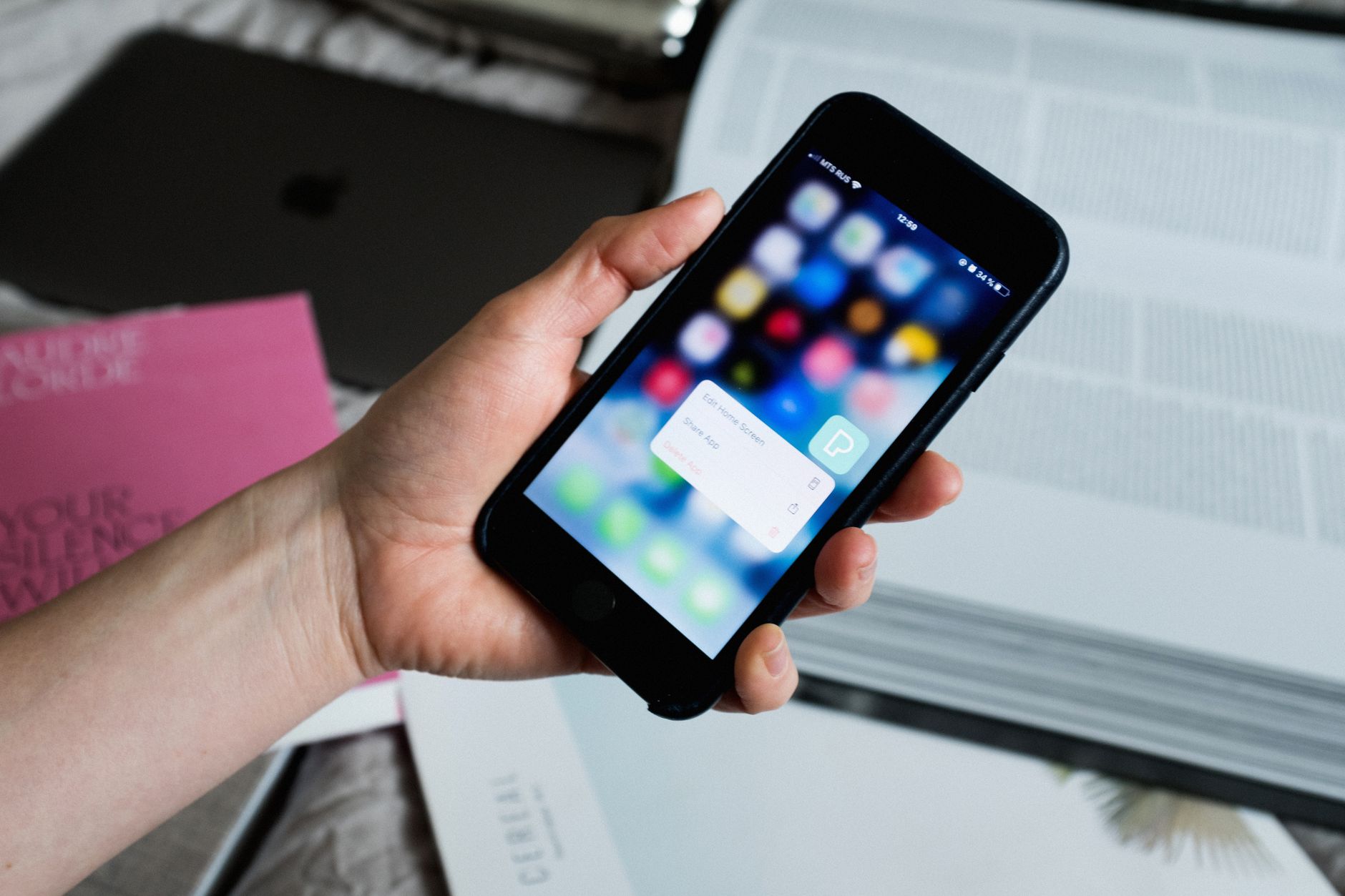
A password manager is an app that remembers your login details for you. It locks them behind your face, fingerprint, or one master password. When you visit a website or open an app, it fills in your username and password automatically. That means you can use long, unique passphrases without typing them each time. You may already own a password manager. iPhone users have Apple’s Passwords app. Android and Chrome users have Google Chrome Password Manager. Windows users may use Microsoft Edge’s built-in manager.
On an iPhone, open Settings, tap Passwords, and use Face ID or Touch ID to unlock. Apple’s official iPhone User Guide explains that the app stores website and app passwords, then offers to fill them in automatically. To set up a new iPhone properly, see how to set up a new iPhone. On an Android phone, open Chrome, tap the three-dot menu, choose Passwords, and sign in with your Google account. You can follow how to set up an Android phone if you are new to the device. Google Chrome’s password manager can also be opened by typing chrome://settings/passwords in the address bar on a computer.
Do not use a password manager you have never heard of. Stick with the ones built into Apple, Google, or Microsoft products. They are updated regularly and do not cost extra. If you choose Apple Passwords, set a strong device passcode. If you choose Google Chrome, turn on sync only if you trust your Google account. The biggest mistake people make is forgetting the master password or device passcode. Write that one down and store it in a locked place, as we explain in step five.
- Turn on two-factor authentication for key accounts
Two-factor authentication, also called 2FA, adds a second lock to your door. After you enter your password, the website asks for a code. That code is usually sent to your phone by text message or generated by an app. Even if a thief has your password, they cannot log in without the code. This one step blocks the majority of account takeovers. You should turn it on for email first, then banking, then any medical portal.
On an iPhone, open Settings, tap your name at the top, choose Sign-In & Security, then Two-Factor Authentication. Apple’s support documentation walks you through the same steps. On a Google account, go to myaccount.google.com, click Security, then 2-Step Verification. Many banks have a similar option under profile or security settings. If your bank’s site is confusing, read how to use online banking safely for a calm walk-through. Some sites call it two-step verification or login approval. The terms mean the same thing.
A common mistake is turning on 2FA for one account and not your email. Your email is the key to resetting other passwords. If a thief gets into your email, they can reset your bank password. So email gets 2FA first. When a site offers an authenticator app instead of text messages, choose the app if you are comfortable. Text messages can be intercepted in rare cases, but they are still much better than no 2FA at all.
- Store backup copies only in a locked place
Many people worry about forgetting passwords. A controlled paper backup is fine. Buy a small notebook with a hard cover, or use a simple address book. Keep it in a locked drawer, a home safe, or a lockbox. Write down the name of the website, your username, and the passphrase. Do not label it as passwords on the cover. Do not leave it on your desk or next to your computer.
If you use a password manager, you may not need paper at all. The manager stores everything. But you still need to remember your device passcode or master password. Write that one down and store it in the same locked place. If you prefer, write a hint instead of the full master password. For example, write the first letter of each word in your passphrase, not the word itself. A hint helps you without giving the answer to a visitor.
Do not store passwords in an unsealed notebook, on a sticky note, or in a note app without a lock. A thief who breaks into your home can easily take a notebook left on the kitchen counter. A repair person or a new caregiver might see a sticky note on your monitor. The locked place is the key. This step connects to the next one: even the best storage habits do not protect you from scams. Thieves will still try to trick you into giving the password yourself.
- Recognize password scam red flags
No matter how strong your password is, a scammer can try to talk you out of it. They may call and claim to be from your bank, Microsoft, Apple, or a government office. They may say your computer is infected or your account is locked. Then they ask for your password or a verification code. Stop right there. Real companies never call and demand your password or a code. Hang up immediately.
Email scams are just as common. You might see a message saying your password was compromised or your account will be closed. It includes a link that looks real. If you click it, the fake site may capture your login. To learn the warning signs, read how to spot a tech support scam and how to avoid phishing emails. If you want to block repeated scam calls, see how to block scam calls.
The safest habit is to never click links in unexpected emails. Instead, open your browser and type the company’s website address yourself. If you are unsure, call the company using the phone number on the back of your bank card or your last bill. Do not call the number in the email. When someone asks for a code that was texted to you, that is a red flag. That code is the second lock on your door. Sharing it gives the thief the key.
- Check if your passwords were leaked and fix them
Sometimes a password becomes unsafe because a company you use had a data breach. You may not hear about it right away. Your phone or browser can warn you. On an iPhone, go to Settings, tap Passwords, then Security Recommendations. Apple will list saved passwords that are weak, reused, or found in known leaks. On Android or a computer, open Chrome, tap the three-dot menu, choose Passwords, then Check passwords. Google will show a list of compromised passwords.
If a password appears in a leak, change it on that site right away. Do not click a link in an email that says your password was leaked. Go directly to the website by typing the address. If you used that same password anywhere else, change those too. This is why unique passwords matter. One leak does not have to damage every account. For extra care, review how to stay safe on social media because crooks can use your public posts to guess your passphrase or security questions.
Make this a monthly habit. Set a recurring reminder on your phone or calendar for the first Sunday of the month. Take five minutes to open your password manager and look at security alerts. If everything is green, move on. If something is red, fix it then and there. Over time, this becomes as routine as checking your mail. You do not have to be perfect. You just have to keep moving forward.
Red Flags & Warnings
- 🚨 Never share a verification code over the phone, by email, or by text. Your bank, Apple, Microsoft, or Medicare will never ask for it.
- 🚨 Do not use personal details in your password, like your birthday, grandchild’s name, or address. A scammer can find those on social media.
- 🚨 Never reuse your email or banking password on shopping sites. If one site leaks, thieves will try that password everywhere.
- 🚨 Beware of emails that say your password was compromised and ask you to click a link. Go to the website directly instead.
- 🚨 Do not leave a password notebook on your desk or a sticky note on your monitor. Keep any written backup in a locked drawer or safe.
- 🚨 If a caller claims to be from tech support and asks for your password or wants remote access, hang up. That is a scam, not a repair.
Frequently Asked Questions
What is the easiest way to remember a strong password?
Use a passphrase made of four or five random words, like correct horse battery staple. Add a number at the end or between words. Write a hint that only you understand, not the full password. A password manager can remember it for you.
Is it safe to write down passwords?
Yes, if you keep the paper in a locked drawer, safe, or another place only you can access. Do not use sticky notes on your monitor or leave a notebook in plain sight. Many security experts accept written backups at home because you are protecting against online thieves, not family members.
What is two-factor authentication and do I need it?
Two-factor authentication, or 2FA, asks for a second proof when you log in. That proof is usually a code sent to your phone or generated by an app. Yes, turn it on for email, banking, and medical accounts. It blocks most thieves even if they have your password.
Are password managers safe for seniors?
Password managers are safe when you choose one built into your device, like Apple Passwords or Google Chrome Password Manager. They keep your logins encrypted and locked behind your face, fingerprint, or master password. You still need to remember your master password or keep it in a locked place.
How do I know if my password has been leaked?
Open your phone’s password settings and look for security recommendations. On an iPhone, go to Settings, tap Passwords, then Security Recommendations. On an Android phone, open Chrome, tap the three-dot menu, then Passwords and Check passwords. If a site warns you to change a password, do it right away.
What should I do if I forgot my password?
Use the sign-in screen’s Forgot Password link. The company will send a reset link or code to your email or phone. If you did not request a reset, ignore it and do not click. Go directly to the official website by typing the address yourself.
What Should You Remember?
- Use passphrases with four or more random words and a number.
- Never reuse passwords on email, banking, or medical sites.
- Try a password manager built into your iPhone, Android phone, or browser.
- Turn on two-factor authentication for important accounts.
- Keep written backups locked away, never on sticky notes.
- Treat password reset emails and calls as possible scams unless you asked for them.
This article is for general informational purposes only and is not medical, financial, or professional advice. Statistics and product details change, so verify current figures with the cited source before acting. Some links may be affiliate links that support this site at no cost to you.