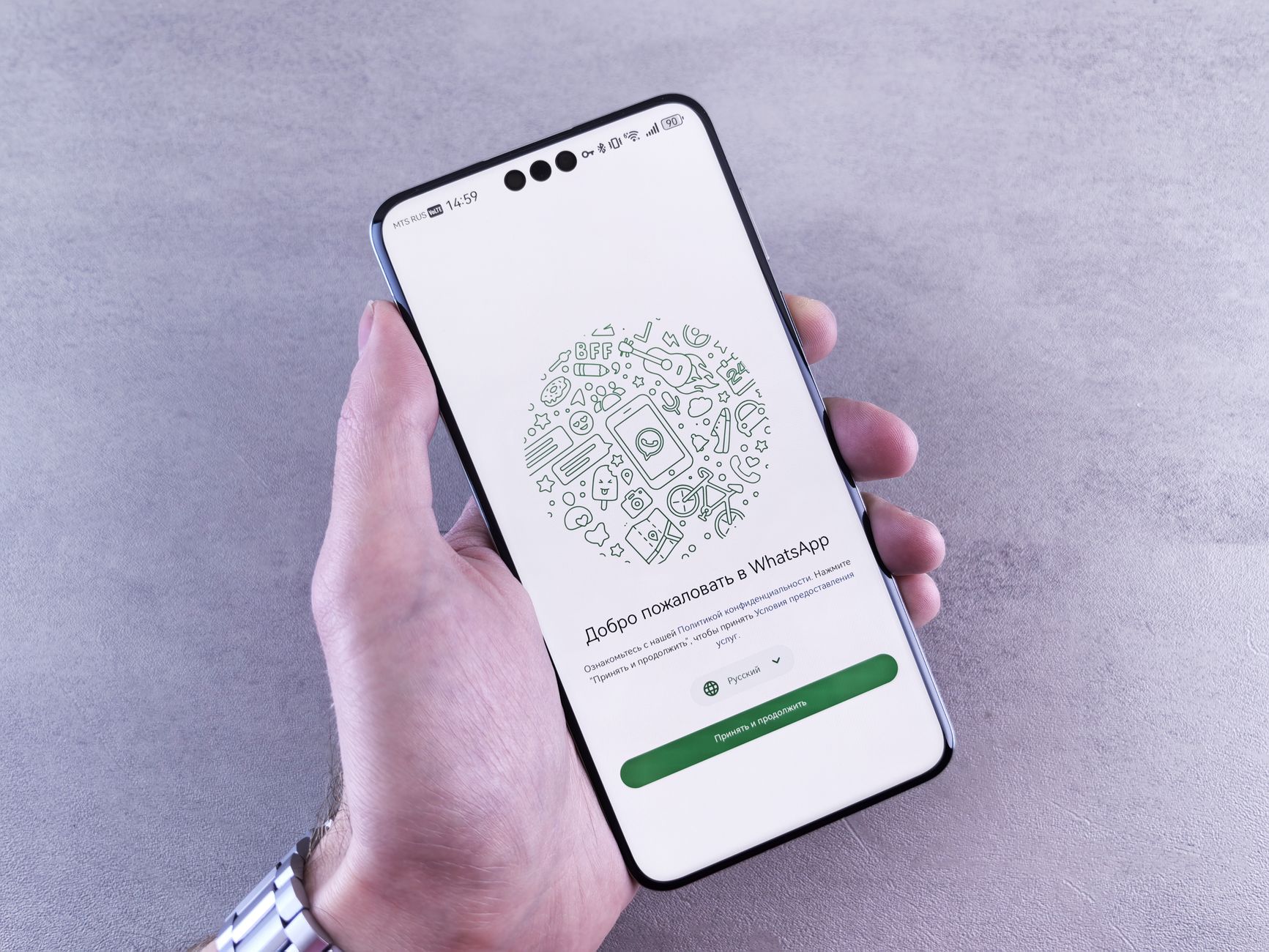
WhatsApp video calls let you see and hear family members from anywhere in the world. The app is free and works on both iPhone and Android phones. That makes it a great choice for families who use different devices. If you are a beginner, the process is easier than you might think. You do not need a separate account or a special camera. You just need WhatsApp installed on your phone. Our guide on how to set up a new iPhone can help if you just got a phone. For Android users, the process is nearly identical, and we walk through it below.
According to Pew Research Center, 61% of adults 65 and older now own a smartphone. More older adults are using video calling than ever before. A video call is a live conversation where you see the other person on your screen. WhatsApp uses your phone’s internet connection, not your calling minutes. This means you can call a grandchild in another country without paying international rates. You need only three things: a phone with a camera, an internet connection, and the WhatsApp app.
This guide walks you through the entire process step by step. You will learn how to check your phone, install WhatsApp, add contacts, start a one-on-one call, and join a group call. We also cover common problems and safety warnings. The steps are written in plain English. You can follow along at your own pace. If the text on your phone is too small, you may want to increase the text size before you start. That way the buttons and names will be easier to read.
Many beginners worry they will break something or press the wrong button. Try not to worry. A WhatsApp video call only starts when you tap the video camera icon in a chat. You can end the call at any time with the red phone button. If something goes wrong, you can try again. We also have a separate guide on video call troubleshooting for problems like frozen video or no sound. For now, take a deep breath and start with step one.
What You’ll Need
- A smartphone with a front-facing camera
- WhatsApp Messenger app installed
- A Wi-Fi or mobile data connection
- At least one contact who also uses WhatsApp
- Optional headphones with a microphone
How Do You Best Easy Guide to Video Call on WhatsApp for Beginners?
- Check Your Phone and Internet Setup
Before you make your first WhatsApp video call, take a few minutes to check your phone. If you have an Android phone, read how to set up an Android phone. Your phone needs a working front camera, a microphone, a speaker, and a reliable internet connection. The front camera is the small lens on the same side as the screen. The microphone and speaker are built into the phone. You do not need any extra equipment to get started. Most modern smartphones already have everything WhatsApp needs.
Next, check your internet connection. A WhatsApp video call works over Wi-Fi or mobile data. Wi-Fi is usually more stable and does not count against your cellular data plan. If you must use mobile data, be aware that a one-minute video call typically uses about 4 to 5 MB. A 10-minute call could use 40 to 50 MB. That is not too bad, but it can add up quickly. If you have a limited data plan, connect to Wi-Fi before you call. You can check your Wi-Fi connection by opening a web page or watching a short video. If those load quickly, your internet is good enough.
Test your camera and microphone before the first call. Open the Camera app on your phone and record a short video of yourself. Play it back. Can you see your face and hear your voice? If yes, your phone is ready. If the video is dark, move to a room with more light. If there is no sound, check that your phone is not on silent mode. On many phones, a small switch on the side controls silent mode. If the camera or microphone does not work in the Camera app, the problem is with the phone, not WhatsApp. You can ask a family member or contact your phone maker for help.
Finally, make the on-screen text easy to read. If the names and buttons in WhatsApp look too small, you can increase the text size in your phone settings. This does not change how the call works. It only makes the app easier to navigate. Once your phone and internet are ready, you can move on to installing or updating WhatsApp.
- Install or Update WhatsApp
If WhatsApp is not already on your phone, you need to install it. On an iPhone, open the App Store. On an Android phone, open the Google Play Store. Tap the search bar and type ‘WhatsApp Messenger’. Look for the app with a green speech bubble icon that contains a white phone. Tap Get or Install. The app is free. If you already have WhatsApp, open the same store and check for updates. Tap Update if you see it. WhatsApp’s official Help Center states that iPhones need iOS 12 or newer and Android phones need Android 5.0 or newer. Most phones from the last several years meet this requirement.
After installing, open WhatsApp. You will see a welcome screen. Tap Agree and Continue. Next, enter your mobile phone number. Make sure you choose the correct country code from the drop-down list. WhatsApp will send a six-digit verification code to that number by text message or automated phone call. Enter the code on the next screen. This step verifies that the phone number belongs to you. You do not need to create a username or password.
WhatsApp will then ask for permission to access your contacts, camera, microphone, and notifications. Tap Allow or OK for each request. The camera and microphone permissions are required for video calls. If you deny them, the app will install but video calls will not work. You can change these permissions later in your phone’s Settings app. On an iPhone, go to Settings, then Privacy, then Camera or Microphone. On Android, go to Settings, then Apps, then WhatsApp, then Permissions.
Finish setup by adding your name. You can also add a profile photo. This helps family members recognize you when you call. The photo is optional. Once setup is complete, you will see your chat list. It may be empty at first. That is normal. In the next step, you will add a contact so you have someone to call.

- Add a Contact to Your Phone
WhatsApp uses the contacts already saved on your phone. To video call a person, that person must be in your phone’s address book and must also use WhatsApp. If you want to call your daughter, for example, her number must be saved in your contacts. If her number is not saved, you will not be able to start a call. This is a common point of confusion for beginners. The contact list in WhatsApp is not separate. It reads from your phone’s address book.
On an iPhone, open the Contacts app. Tap the plus sign in the top right corner. Enter the person’s first and last name. Enter their phone number. On an Android phone, open the Contacts app, tap the plus icon, and fill in the same fields. Save the contact. Then open WhatsApp. Tap the green chat bubble icon at the bottom right on iPhone or bottom right on Android. On the next screen, pull down from the top to refresh. The new contact should appear if they have WhatsApp. If they do not have WhatsApp, their name will not appear in the WhatsApp contact list.
Country codes are very important. If your family lives in another country, you must include the plus sign and the country code. For example, a mobile number in the United Kingdom starts with 07, but when saving it from another country you would write +44 followed by the number without the leading zero. If you are in the United States, the country code is +1. If you are calling someone in Canada, also +1. If the country code is wrong, WhatsApp will not find the contact.
After saving the contact, open WhatsApp and look for their name in the chat list. If you still do not see them, ask them to open WhatsApp and make sure their account is active. You can also send them an invitation from WhatsApp. But remember, the video call only works between two WhatsApp accounts. You cannot use WhatsApp to call a landline or a regular mobile number that does not have the app installed.
- Start a Video Call from a Chat
Now you are ready to make your first video call. Open WhatsApp and tap the Chats tab at the bottom of the screen on iPhone or at the top on Android. You will see a list of conversations. If you already chatted with the person, tap their name. If you have no existing chat, tap the new chat icon. It looks like a square with a pencil on iPhone or a green speech bubble on Android. Select the contact from the list. This opens a chat window with that person.
In the chat window, look at the top right corner. You will see two icons: a telephone handset and a video camera. The video camera icon is the one you want. Tap the video camera icon once. WhatsApp will immediately start calling the other person. You will hear a ringing sound. The other person’s phone will show an incoming call screen with a green answer button and a red decline button. When they tap the green button, you will see their face appear on your screen.
During the call, you will see the other person in the main screen. You will also see a small rectangle showing your own face. That small rectangle is your self view. You can move it around by dragging it with your finger. This is helpful if it covers something important. Keep the phone at eye level if you can. Look toward the front camera lens at the top of the screen. This makes it look like you are making eye contact with the other person.
If the person does not answer, the call will end after several rings. You can try again later. You can also switch from a regular voice call to a video call. During a voice call, tap the video camera icon and the other person will be invited to turn on video. Once they accept, the call becomes a video call. That is a handy trick if you start with a voice call and decide you want to see each other.

- Adjust Call Settings and Screen Views
While you are on a video call, the screen may look clean with just the video and a few buttons. If you do not see any buttons, tap the screen once. The buttons will appear for a few seconds, then fade away again. This keeps the video view uncluttered. The main buttons are mute, speaker, camera flip, and end call. On an iPhone, the buttons may appear at the bottom. On Android, they may appear at the top or bottom depending on your phone.
The mute button looks like a microphone. When you tap it, the microphone icon gets a slash through it. That means the other person cannot hear you. Tap it again to unmute. This is useful if you need to cough or if there is background noise. The speaker button lets you choose between the earpiece speaker and the loudspeaker. The loudspeaker is easier to hear if you have hearing loss or if you want to set the phone down and talk hands-free.
The camera flip button has a camera icon with circular arrows. Tap it to switch between the front camera and the back camera. The front camera shows your face. The back camera shows what is in front of you, like your garden, a grandchild, or a recipe. This is helpful when you want to show something instead of just describing it. You can flip back at any time.
You can also adjust the phone’s volume with the physical buttons on the side. If you are hard of hearing, consider using headphones with a built-in microphone. Many wired or Bluetooth headphones work with WhatsApp video calls. If you plan to use a tablet instead of a phone, the steps are the same, but the screen is larger. A tablet can be easier for video calls because you see faces more clearly. Just make sure the tablet has a front-facing camera.
- End the Call and Manage Notifications
To end the call, look for the red phone icon. Tap it once. The call will stop right away. The screen returns to the chat window. You will see a message in the chat that says ‘Video call’ followed by the time or duration. That is just a record of the call. You do not need to do anything with it. The other person will also see the call ended.
After the call, you may want to adjust your notifications. Open WhatsApp and go to Settings. On iPhone, tap the gear icon at the bottom right. On Android, tap the three dots at the top right and then Settings. Then tap Notifications. Here you can choose whether WhatsApp shows a banner, plays a sound, or vibrates when someone calls you. You can set a different tone for WhatsApp calls than for regular phone calls. This helps you know when a family member is trying to reach you.
If you missed a video call, you will see a red missed call icon in your chat list. Tap the chat to open it. You can then tap the video camera icon to call the person back. The other person’s phone will ring again. You can also tap the notification on your lock screen if it is still there. But notifications disappear quickly, so it is often easier to open WhatsApp and go to the chat.
If you have an iPhone and all your family members use iPhones too, you might also consider how to make a FaceTime call. FaceTime works only on Apple devices. WhatsApp works across iPhone and Android, which makes it more flexible for families with different phones. Choose the app that everyone can use. For many families, that is WhatsApp.
- Make a Group Video Call
WhatsApp also supports group video calls. A group video call lets you talk with several people at the same time, like a family meeting. WhatsApp allows group video calls with up to 32 people. That is a specific number you can rely on. To make a group call, you first need a group chat that includes those people. If you already have a family group, you can skip the next paragraph. If not, you can create one in about two minutes.
To create a group, open WhatsApp and tap the new chat icon. Then tap New Group. Select the contacts you want to include. You can select up to 31 others for a group that will later hold a video call. Tap Next. Type a group name, such as ‘Family’ or ‘Sunday Call’. Tap Create. The group appears in your chat list. You can send a message in the group before you call to tell everyone you are about to start a video call.
Open the group chat. Look at the top right corner for the video camera icon. Tap it. WhatsApp will call all group members at the same time. People answer as they join. You will see a grid of faces on your screen. If there are too many faces to see clearly, tap on one face to bring that person to the front. According to AARP, older adults increasingly use video calls to stay connected with grandchildren and friends, and group calls are a big part of that trend. This makes family gatherings feel closer even when people are far apart.
Group calls can be noisy at first. Use the mute button on your side when you are not speaking. Ask others to do the same if there is background noise. The call host can also remove a participant if needed, but that is rarely necessary. When you are ready to leave, tap the red phone icon. The group call continues for the other members if they want to keep talking. This is different from leaving a one-on-one call, which ends the call for everyone.

- Fix Common Problems During Video Calls
Video calls usually work well, but sometimes you may see a frozen picture or hear choppy audio. The most common cause is a weak internet connection. First, move closer to your Wi-Fi router. If you are on mobile data, check your signal bars. A stronger signal usually fixes the problem. You can also turn Wi-Fi off and back on again. If the call is very bad, end it and start a new one. A fresh call often connects to a better server.
If the other person cannot hear you, check the mute button first. The microphone icon should not have a slash through it. If you are unmuted and they still cannot hear you, test your microphone in the Voice Memos app or Camera app. If the microphone does not work there either, your phone may have a hardware problem. If the microphone works in other apps, close WhatsApp completely. On an iPhone, swipe up from the bottom and flick WhatsApp away. On Android, open recent apps and swipe WhatsApp away. Then reopen it and try again.
If you cannot see the other person, ask them to check their camera. Sometimes a phone case covers the camera lens. Other times the person may have tapped the camera flip button by mistake and is showing the back camera at a wall. Ask them to tap the screen to reveal the button and tap the camera flip icon. Also check your own screen. If your picture is too dark, move so that light falls on your face. A window in front of you works better than a bright window behind you.
For a complete list of fixes, read our video call troubleshooting guide. It covers audio problems, camera issues, freezing, and connection errors in more detail. You can also close other apps that use the internet, like streaming music or video apps. Those can slow down your WhatsApp call. If WhatsApp keeps crashing, go to the App Store or Google Play Store and update the app. Updates often fix bugs.
Finally, stay alert when you receive unexpected video calls. Some scammers use video calls to build a false sense of trust. They may claim to be from a tech company or a government office. Real companies will not call you through WhatsApp for support. If someone calls and asks for your bank details or a payment, end the call immediately. Read our guide on how to spot a tech support scam to learn the warning signs. You can block the number in WhatsApp after the call.
Red Flags & Warnings
- 🚨 Never share your WhatsApp six-digit verification code with anyone, even if they claim to be from WhatsApp. Scammers use this code to steal your account.
- 🚨 Be careful with video calls from unknown international numbers. If you do not know the caller, let it ring. You can block the number later.
- 🚨 Watch for fake tech support calls. Real companies like Apple, Microsoft, or your bank will not make unsolicited WhatsApp video calls and ask for remote access.
- 🚨 Check your mobile data plan before long video calls. A 10-minute call can use about 40 to 50 MB. Use Wi-Fi when possible if your plan is limited.
- 🚨 Never send money or gift cards to someone you only met on a WhatsApp video call. Scammers use friendly calls to build trust before asking for money.
- 🚨 Keep WhatsApp updated. Updates fix security holes. Turn on automatic updates in your phone’s app store.
Frequently Asked Questions
Do I need a separate account to make WhatsApp video calls?
No. WhatsApp uses your mobile phone number. After you verify the number in the app, you can start video calling any contact who also uses WhatsApp. There is no username or password to remember beyond your phone number verification.
How much data does a WhatsApp video call use?
A one-minute WhatsApp video call uses about 4 to 5 MB of data on average. A 10-minute call may use around 40 to 50 MB. If you have a limited data plan, connect to Wi-Fi before calling.
Can I video call someone who does not have WhatsApp?
No. The other person must have WhatsApp installed and a verified phone number. You can invite them to download the app from your chat list, but the call itself only works between WhatsApp users.
Why can the other person not hear me on a WhatsApp video call?
First, check if you are muted. Tap the microphone icon to unmute. Also check that your phone’s microphone is not blocked by a case or cover. If the problem continues, close WhatsApp and restart the call.
Can I make WhatsApp video calls on a tablet?
Yes, WhatsApp now supports tablets with the multi-device feature, but setup may require linking to your phone. The steps are similar to a phone, but a larger screen can help if you have vision needs.
Is WhatsApp video calling free internationally?
Yes. WhatsApp video calls are free over Wi-Fi. On mobile data, the call uses your data allowance but no per-minute international calling charges. Check your data plan to avoid extra fees.
What Should You Remember?
- Check your internet before you start. A stable Wi-Fi connection prevents frozen video.
- Install WhatsApp from the App Store or Google Play Store and verify your phone number.
- Save contacts correctly with the country code. WhatsApp only calls people in your phone’s address book.
- Tap the video camera icon inside a chat to start a call. It appears at the top right.
- Use the mute and speaker buttons during the call to control sound. Tap the screen to reveal them.
- Create a group chat to video call up to 32 people at once.
- Never share your verification code or banking details during an unexpected video call.
This article is for general informational purposes only and is not medical, financial, or professional advice. Statistics and product details change, so verify current figures with the cited source before acting. Some links may be affiliate links that support this site at no cost to you.