FaceTime is Apple’s built-in video and audio calling app. It works on iPhone, iPad, and Mac. If you have an Apple device, you already have FaceTime. You do not need to download anything extra. Many people use FaceTime to see grandchildren, talk to far-away friends, or check in with family. Learning to make a FaceTime call is one of the most useful skills for a new iPhone owner. If you are still getting comfortable with your device, our guide on how to set up a new iPhone can help you get ready.
According to Pew Research Center, 61% of adults ages 65 and older own a smartphone. That means most older adults can use FaceTime if they have an iPhone. Apple’s official FaceTime support page says FaceTime is available on iOS devices, iPadOS devices, and Macs. You can make a video call with one person or with up to 32 people using Group FaceTime. This article walks you through each step slowly. You will learn how to turn on FaceTime, add a contact, start a call, and answer a call.
Before you start, gather two things. First, you need an Apple device such as an iPhone or iPad. Second, you need the person’s phone number or the email address tied to their Apple ID. FaceTime calls use your internet connection, not your cellular minutes. If you are on Wi-Fi, the call is usually free. On cellular, it uses data from your plan. If you need help seeing small text on your screen, check our guide on how to increase text size on phone before you begin.
In the next sections, I will show you each step in order. Start with Settings to make sure FaceTime is turned on. Then add a contact if needed. Next, open the FaceTime app and place a call. I will also explain how to answer calls and use basic controls like mute and speaker. By the end, you will feel comfortable making your first FaceTime call. Take your time and follow along on your own device. This guide is written for true beginners, so no prior experience is needed.
What You’ll Need
- iPhone, iPad, or Mac with FaceTime enabled
- Apple ID signed in on the device
- Wi-Fi or cellular data connection
- The other person’s phone number or Apple ID email
- Contacts app with the person’s details saved
How Do You Best FaceTime Call Guide?
- Turn on FaceTime in Settings
Open the Settings app on your iPhone or iPad. It is the gray gear icon. Scroll down and tap FaceTime. If you see a green switch next to FaceTime, it is already on. If the switch is gray or white, tap it to turn it green. You may be asked to sign in with your Apple ID. Use the same Apple ID email and password you use for iCloud and the App Store. If you have never set up an Apple ID, our guide on how to set up email can help you understand the email part.
When you sign in, FaceTime shows which phone numbers and email addresses people can use to call you. On an iPhone, your phone number is usually selected. You can also select an email address. This is useful if you want people to reach you on an iPad that does not have a phone number. Checkmarks appear next to the addresses you choose. You can tap an address to add or remove the checkmark.
Why does this matter? If FaceTime is not turned on, your contacts will see a message that you are not available. Turning it on is a one-time setup. If you ever change your Apple ID password, you may need to sign in again. Keep your password safe. If you suspect a scam related to your Apple ID, read how to spot a tech support scam.
- Add or check a contact
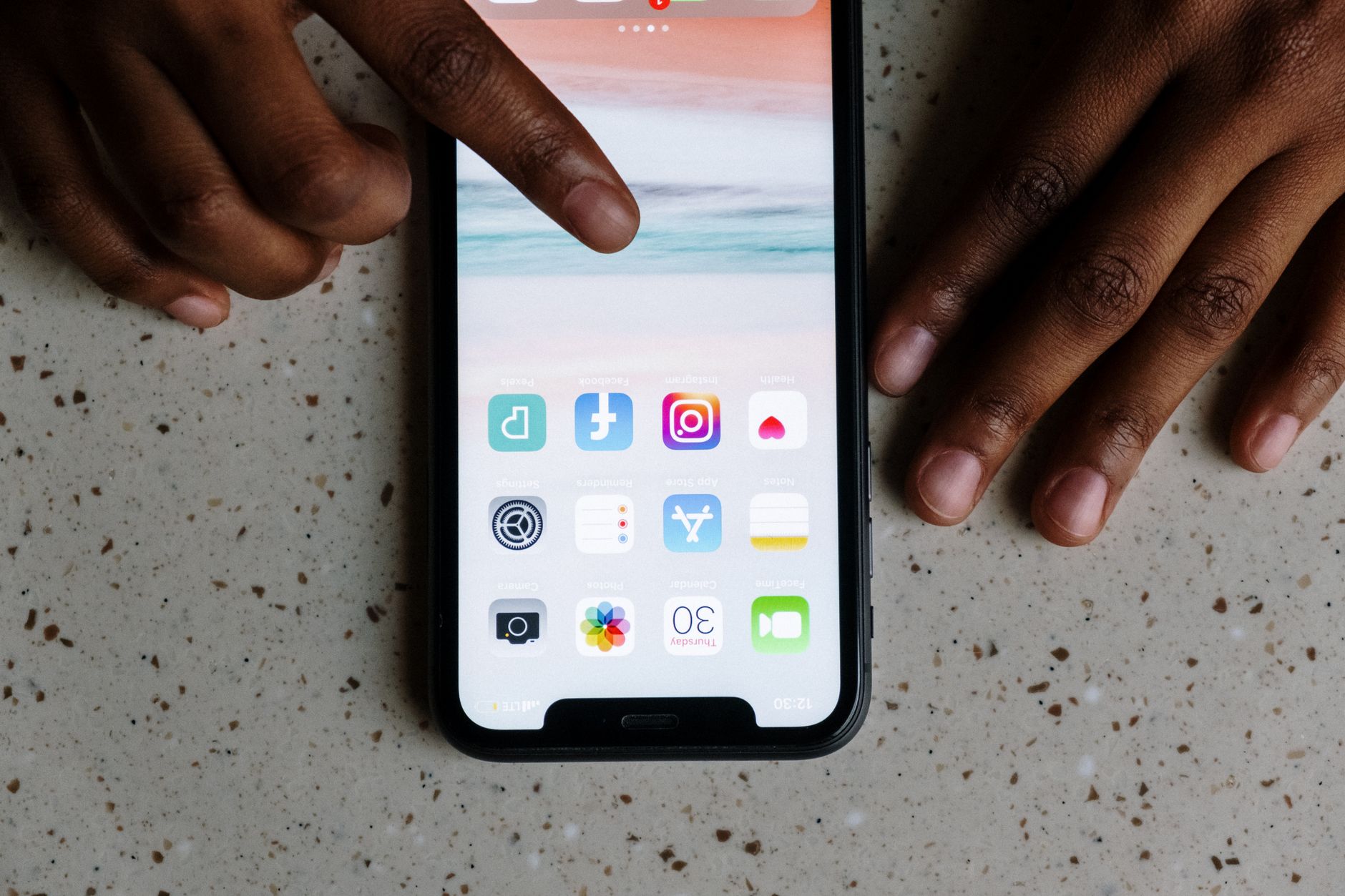
Open the Contacts app on your device. It looks like a small book or a person icon. Tap the plus sign in the top right corner to add a new contact. Type the person’s first and last name. Then add at least one phone number or email address. For FaceTime, it works best if you add the email address they use for their Apple ID. If you add a phone number, make sure it is an iPhone number. FaceTime can call Android numbers too, but the call will not connect because FaceTime is not available on Android.
If the person is already in your Contacts, open their card and check what information is saved. Look for an email address with an iCloud, me, or mac domain. This is often the Apple ID. If you are not sure, ask the person which email they use for FaceTime. Having the right contact details before you call saves time.
If you are using an iPad instead of an iPhone, the Contacts app works the same way. Our guide on how to use a tablet explains more iPad basics. You can also add contacts from a recent email or message. The key is to have the correct phone number or Apple ID email ready.
- Open the FaceTime app
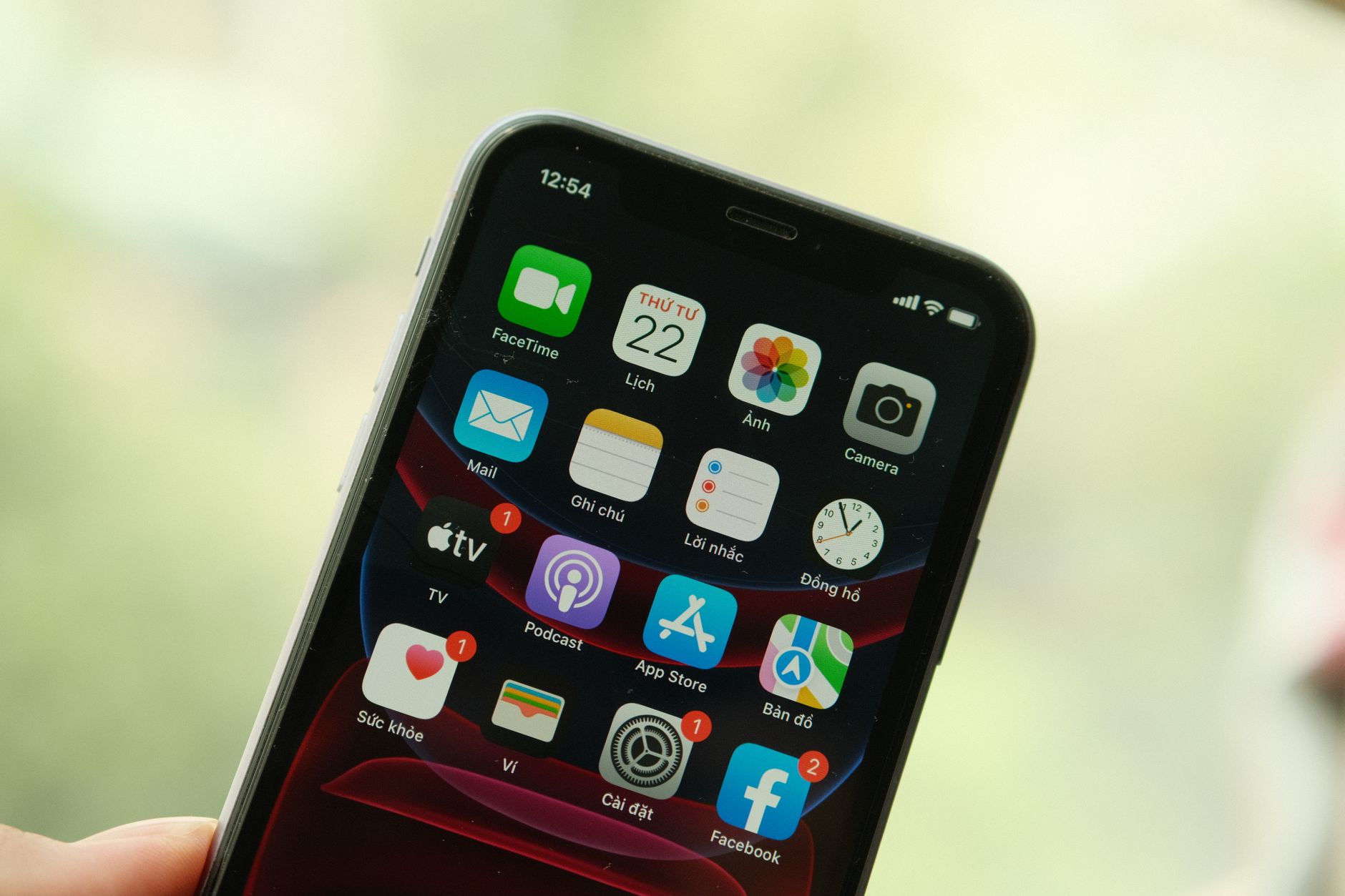
Now go to your Home Screen. Look for the FaceTime icon. It is a white video camera on a green background. On some devices, the icon may be inside a folder titled Utilities or Productivity. If you cannot find it, swipe down from the middle of the Home Screen and type FaceTime in the search bar. Tap the FaceTime app to open it.
On an iPhone, FaceTime is usually installed by default. On older devices, you may see an audio-only call icon as well. The main button is for video. When you open the app, you will see a search bar at the top and a list of recent calls below. At the top right, there is a plus button. This is the button you will tap to start a new call.
If the text on your Home Screen is hard to read, you can make icons and labels bigger. Our guide on how to increase text size on phone shows you how. A larger screen or larger text can make finding the FaceTime app much easier.
- Start a FaceTime call with a phone number or email
Tap the plus button in the top right corner of the FaceTime app. A new screen appears. At the top, there is a field labeled ‘To:’. Tap it and type the person’s phone number or email address. If you type a phone number, include the area code. If you type an email, double-check the spelling. FaceTime will try to match the contact as you type. You can tap a suggestion from the list below.
After you enter the number or email, you will see two buttons at the bottom: a video camera button and a phone button. The video camera button starts a video call. The phone button starts an audio-only FaceTime call. For your first call, tap the video camera button. Your device will dial. The screen changes to a full-screen view of your own face while you wait. This is normal. It lets you adjust your position before the other person answers.
If the call does not connect, you may see a message such as ‘FaceTime Unavailable’. This usually means the other person does not have FaceTime turned on, is not using an Apple device, or has no internet connection. Do not worry. Check the number or email and try again later. You can also ask the person to call you instead. If you prefer to use voice commands, our guide on how to use voice assistants explains how to ask Siri to call someone for you.
- Call a saved contact
Instead of typing the number every time, you can call a saved contact. In the FaceTime app, you will see a list of recent and missed calls. Tap a name in that list. The contact card opens. Tap the video button to start a new video call. If the person has both a phone number and an email saved, FaceTime may show two separate buttons. Pick the one you normally use for them.
You can also start a FaceTime call from the Contacts app. Open Contacts, tap the person’s name, then scroll down and tap the FaceTime button. This button looks like a video camera. It will start a video call right away. Some people find this method easier because they already use Contacts for phone calls.
When you call a saved contact, FaceTime remembers the last method you used. That makes future calls faster. If the person is in a different time zone, check the time before calling. A quick text message first can be a polite way to ask if they are free to talk. You can also use Messages to start a FaceTime call, which we cover next.
- Start FaceTime from a message conversation
Many people text more than they call. If you are already in a text conversation with someone, you can start a FaceTime call from right inside Messages. Open the Messages app. Tap the conversation with the person you want to video call. At the top of the screen, tap the person’s name or photo. A small menu appears. Tap the FaceTime button. This starts a video call immediately.
This method is useful because you do not need to remember the person’s email or phone number. The contact information is already in the conversation. It also works for group chats. If you tap a group name, you can start a Group FaceTime call with everyone in that chat. Up to 32 people can join a Group FaceTime call, according to Apple’s official FaceTime support page.
If the person uses an Android phone, this FaceTime button will not work. In that case, you can use a different app. Our guide on how to video call on WhatsApp shows you how to video call someone on Android. Many families use both FaceTime for Apple devices and WhatsApp for Android devices.

- Answer, end, or decline a FaceTime call
When someone calls you on FaceTime, your iPhone or iPad rings. A full-screen notification appears with the caller’s name or number. You will see two large buttons: Accept and Decline. Tap Accept to answer the video call. If you want to answer with audio only, tap the small phone icon instead of the video icon. Tap Decline if you do not want to answer. The caller will see that you are unavailable.
During a FaceTime call, you will see a red button at the bottom of the screen. Tap this red button to end the call. On an iPhone, the red button may be a circle with a white phone icon. On an iPad, it appears at the bottom center. If you miss a call, it appears in the recent calls list in the FaceTime app. You can tap it to call back.
If you are busy and cannot answer, you can also send a quick text response. Some devices let you tap Message and send a preset reply like ‘Can I call you later?’. This works only when your device is unlocked. For more troubleshooting help, see our guide on video call troubleshooting.
- Use basic FaceTime controls during a call
Once you are in a FaceTime call, you will see several small buttons on the screen. The microphone button mutes your sound. Tap it when you need to cough or talk to someone in the room. The speaker button switches the audio between the earpiece and the loudspeaker. The camera flip button switches between the front and back camera. Use the back camera to show the other person what you are looking at.
If you tap the screen once, the controls appear. If you tap again, they may hide. On newer versions of iOS, you can also tap the SharePlay button to share your screen or watch a video together. Be careful with screen sharing. Only share your screen with someone you trust. Never show banking details, passwords, or verification codes during a screen share.
If your video call freezes or drops, check your internet connection. Move closer to your Wi-Fi router. You can also turn off cellular data and use Wi-Fi only to save data. FaceTime is generally reliable, but a weak signal can cause problems. If the other person cannot see you, ask them to check their own connection as well.
Red Flags & Warnings
- 🚨 Do not answer FaceTime calls from unknown numbers or email addresses. Scammers can spoof caller ID. If a caller claims to be from Apple or tech support, hang up. Apple never asks for your Apple ID password or verification code over a call.
- 🚨 FaceTime only works between Apple devices. Do not download an app called ‘FaceTime for Android’ or ‘FaceTime for Windows’. Those are fake and may contain viruses. Use WhatsApp or Zoom instead.
- 🚨 Video calls use cellular data. If you are not on Wi-Fi, a FaceTime video call can use about 15 megabytes per minute. Check your cellular plan to avoid overage charges. Use Wi-Fi for long calls.
- 🚨 Never share personal information during a screen share. Only share your screen with family or close friends. A scammer could ask you to log in to your bank while sharing your screen. That is a red flag.
- 🚨 Keep your iPhone or iPad updated. Apple releases security fixes for FaceTime. Go to Settings > General > Software Update to check for updates. If you see a suspicious call, read how to block scam calls.
- 🚨 If someone calls and asks you to buy gift cards or send money to fix a FaceTime problem, it is a scam. Hang up immediately and report it to the Federal Trade Commission.
Frequently Asked Questions
Can I make FaceTime calls to Android phones?
No. FaceTime only works between Apple devices such as iPhone, iPad, and Mac. If the other person uses Android, you can use WhatsApp, Zoom, or another video calling app instead.
Does FaceTime cost money?
FaceTime itself is free. It uses your internet connection instead of cellular minutes. If you are on Wi-Fi, there is usually no extra charge. On cellular data, video calls can use a lot of data, so check your plan.
Do I need a SIM card to use FaceTime?
No. FaceTime works over Wi-Fi without a SIM card. You need an Apple ID and a contact’s phone number or email. An iPad or iPod touch without cellular service can still make FaceTime calls on Wi-Fi.
Can I use FaceTime on a Windows computer?
No. FaceTime is not available on Windows or Android. Use Zoom, Skype, or Google Meet instead. These apps work on both Apple and non-Apple devices.
How many people can join a FaceTime call?
Group FaceTime supports up to 32 people at once. You can start a group call from Messages or add people during an existing call. Each person needs an Apple device with FaceTime turned on.
Why does my FaceTime call keep dropping?
A weak Wi-Fi signal, low cellular data, or an outdated version of iOS can cause dropped calls. Move closer to your router, update your device, and close other apps using the internet. If the problem continues, check our video call troubleshooting guide.
What Should You Remember?
- Check Settings: Turn on FaceTime in the Settings app before your first call.
- Use Apple ID: People can call you using your phone number or your Apple ID email.
- Tap the Plus Button: The plus sign in the FaceTime app is the fastest way to start a call.
- Save Contacts First: Add phone numbers and emails to Contacts so you can call with one tap.
- Call from Messages: If you already text someone, start a FaceTime call right from the chat.
- Watch Your Data: Use Wi-Fi for long video calls to avoid cellular overage charges.
This article is for general informational purposes only and is not medical, financial, or professional advice. Statistics and product details change, so verify current figures with the cited source before acting. Some links may be affiliate links that support this site at no cost to you.