A tablet can feel like a giant phone or a tiny TV, but it is actually a simple computer with a touch screen. You can read, watch shows, make video calls, and send photos without a mouse or keyboard. Pew Research Center reports that tablet ownership among adults 65 and older has grown steadily, and many older adults now use a tablet as their main device for going online. Pew Research Center tracks these technology adoption trends.
If you can tap a light switch, you can use a tablet. There is no need to be technical. The best approach is to start with the basics and repeat them until they feel natural. Do not worry about making mistakes. Most errors are easy to undo, and nothing you tap on the home screen will break the tablet. Our article on how to set up an Android phone shows that setup steps are nearly identical on a tablet.
This guide walks you through the whole process. First, you will learn the physical buttons and how to turn the device on. Then you will connect to Wi-Fi, adjust text size, make a video call, install a few apps, take photos, and stay safe. Each step builds on the one before, so you can stop after any section and return later. You do not need to memorize everything in one sitting. Repetition is your friend, and every attempt makes the steps easier to remember.
A tablet is especially useful for seniors because the screen is larger than a phone and easier to hold than a laptop. You can sit on the couch, prop it on the kitchen counter, or read in bed. Once you set it up, you may wonder why you waited so long. Let’s begin with the hardware in your hands.
What You’ll Need
- An iPad or Android tablet
- Wi-Fi network name and password
- Apple ID or Google account
- A soft microfiber cloth
- A safe place to charge the tablet
How Do You Best Tablet Tips?
- Know the physical buttons and ports
Start by holding the tablet in both hands. The front is the screen. The top edge often has a small power button. On an iPad, it is on the top right if you hold it in portrait mode. Many Android tablets put the power button on the right side. Do not press too hard. A short press turns the screen on or off.
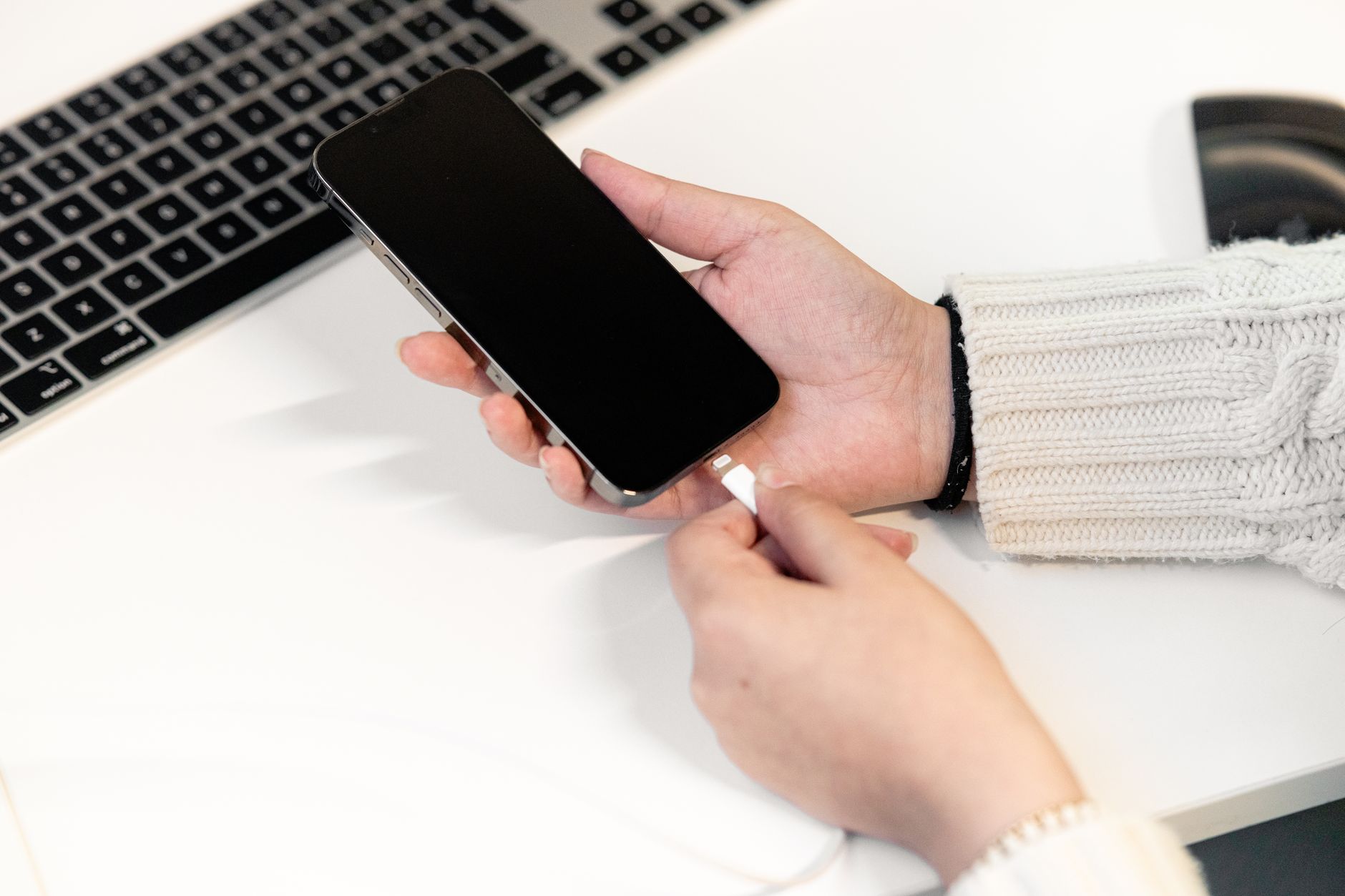
Look for the volume buttons. They are usually next to the power button or on the opposite side. One button raises sound, the other lowers it. The charging port is on the bottom edge. It may be a flat USB-C port or a wider older port. The port is where you plug in the cable that came in the box.
There is a camera on the back and one on the front. The front camera points at you during video calls. Keep it clean with a soft cloth. A few tablets still have a round Home button below the screen. Press it once to go back to the home screen. Newer models use swipes instead.
Apple has a detailed hardware overview in the official iPad User Guide. You can also ask your tablet to identify settings using a voice assistant. Our article on how to use voice assistants explains how to ask questions out loud.
- Turn on the tablet and connect to Wi-Fi
Press and hold the power button for two to three seconds. Let go when you see the manufacturer logo. The screen should light up. If nothing happens, the battery may be empty. Plug the tablet into the charger for at least fifteen minutes and try again.
The first time you turn it on, a setup assistant appears. Choose your language and country. Then the tablet asks you to connect to Wi-Fi. Tap your home network name and type the password. The password is often printed on a sticker on your router.
Next, you sign in with an account. On an iPad, you need an Apple ID. On an Android tablet, you need a Google account. If you already have one from a phone, use the same one. If not, the screen walks you through creating one. Our guide on how to set up an Android phone covers the Google account steps in plain language.
You may be asked to set a passcode. Choose six digits you can remember. You can also set up fingerprint or face unlock. These make the tablet easier to unlock later. Once setup completes, you land on the home screen. The home screen shows small pictures called app icons.
- Learn the three basic touch moves
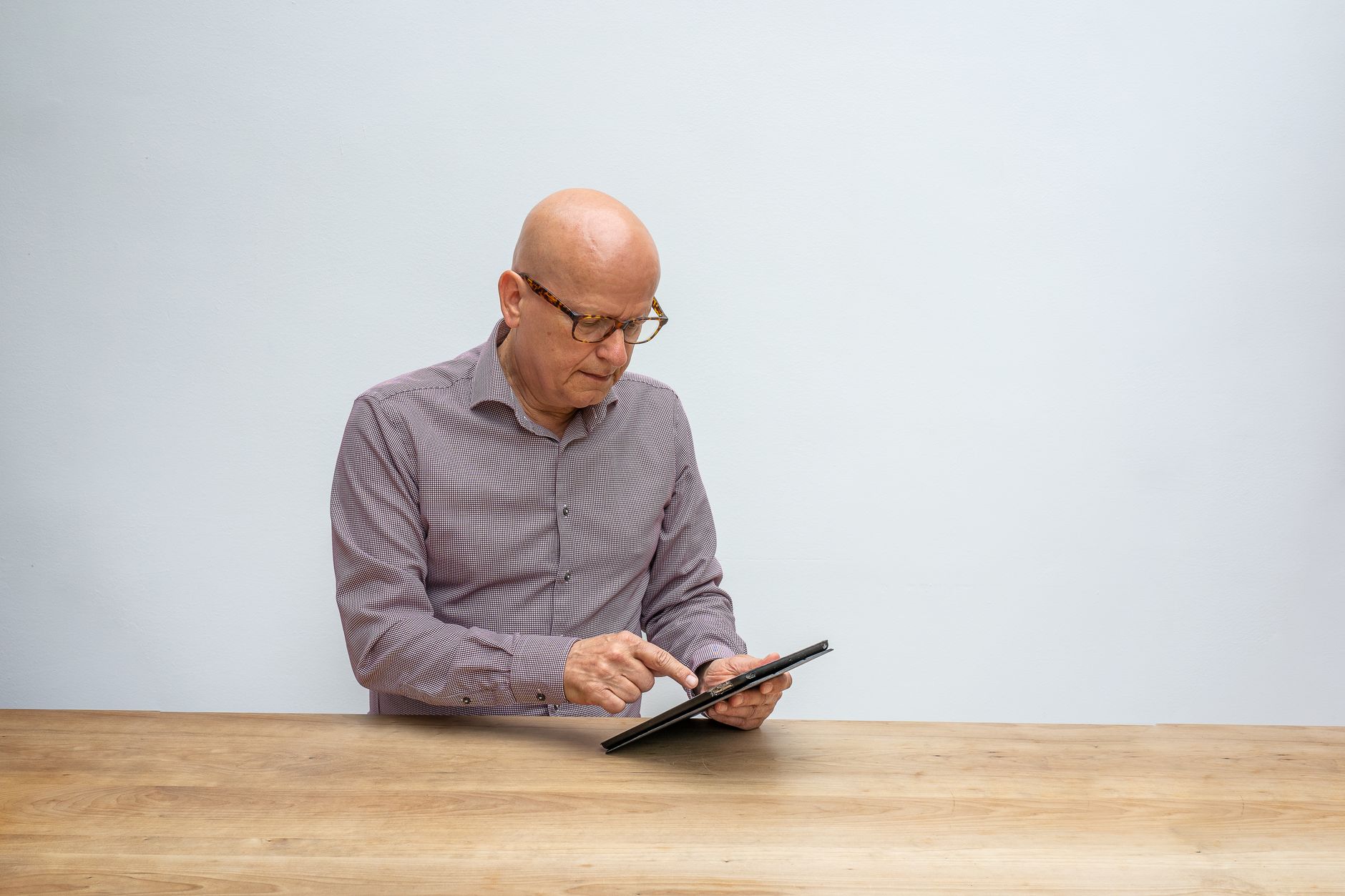
Most tablet actions use three touch moves. The first is a tap. Touch an icon with one finger and lift quickly. A tap opens an app or selects an item. Press gently. The screen responds to light touch.
The second move is a swipe. Put a finger on the screen and slide it. Swipe up from the bottom edge to go home. Swipe left or right to move between pages. Swipe down from the top edge to see notifications.
The third move is a pinch. Place two fingers on the screen and move them apart to zoom in. Pinch them together to zoom out. This works in photos, web pages, and maps. Practice each move slowly at first.
If the screen feels too sensitive, you can adjust touch settings later. Most tablets also let you tap with a stylus or a finger. You do not need to press like a button. A relaxed tap does the job.
- Make text larger and easier to read
Small text is a common frustration. The fix takes about one minute. On an iPad, open Settings, tap Display & Brightness, then tap Text Size. Drag the slider to the right. On Android, open Settings, tap Display, then tap Font size. The exact names vary slightly.
You can also turn on bold text. On an iPad, the same Display & Brightness screen has a Bold Text switch. On many Android tablets, look for a Font style or Bold option. Bold text makes letters thicker without making them huge.
Some tablets have a zoom feature. This lets you magnify part of the screen with a double tap or a gesture. Our guide on how to increase text size on phone shows these settings with pictures. The same steps work on tablets.
After you change the size, check your email or a web page. If it still feels small, go back and move the slider again. You can also lower the screen brightness slightly to reduce eye strain. Comfort matters more than a fancy setup.
- Make a video call to family
Video calls are one of the best reasons to own a tablet. The larger screen makes faces easier to see. If your family uses iPhones, an iPad has FaceTime built in. Open the FaceTime app, tap the plus sign, type the person’s phone number or email, and tap the video button. Our article on how to make a FaceTime call walks through each step.
For family members with Android phones or computers, Zoom is a good choice. Our step-by-step guide on how to use Zoom for beginners shows you how to join a meeting with a link. The other person usually sends you an email or text with a meeting link. Tap that link and the call begins.
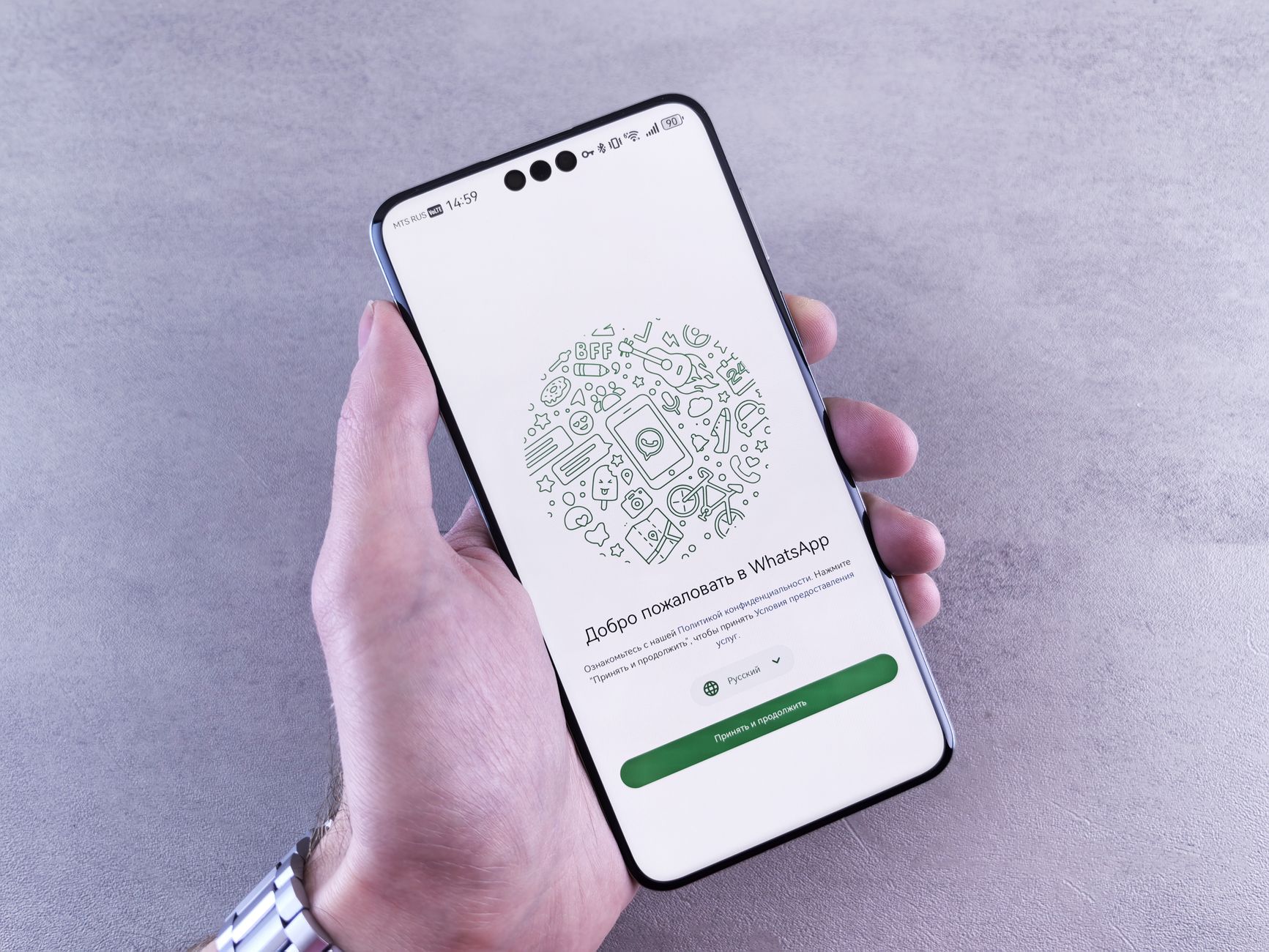
WhatsApp also supports video calls. If you already use WhatsApp on a phone, install it on the tablet and link your account. Our article on how to video call on WhatsApp walks you through the exact buttons. You can call anyone in your contact list.
If the picture freezes or you cannot hear, do not panic. Most problems are simple. Our video call troubleshooting guide covers common fixes like checking the microphone and Wi-Fi. You can also practice with a friend before a big family call.
- Install a few useful apps
Apps are programs that do one job. To get new apps, open the App Store on an iPad or the Google Play Store on an Android tablet. Tap the search bar, type the name of the app, and tap Search. When you see the right app, tap Get or Install.
The tablet may ask for your password or fingerprint. That is normal. Free apps will not charge you. Paid apps show a price next to the button. Start with free apps only. You can always add paid ones later.
Good first apps for seniors include a weather app, a news app, and a magnifying glass app. Also install a video call app like Zoom or WhatsApp if you have not already. Our guide on how to set up email helps you add your email app so you can read messages on the tablet.
After installing, move apps into folders to keep the screen tidy. Press and hold an app icon until it wiggles, then drag it on top of another app. Name the folder something like Reading or Calls. This keeps the home screen simple and calm.
- Take photos and share them
Tap the Camera app. On the screen, a large round button acts as the shutter. Tap it once to take a photo. The tablet saves the picture automatically. You do not need a separate memory card.
To view your photos, open the Photos app on an iPad or the Gallery app on Android. Tap a picture to see it bigger. Swipe left or right to move through your photos. You can delete a photo by tapping the trash icon.
Sharing a photo is easy. Tap the Share button, which often looks like a square with an arrow pointing up. Then choose Mail, Messages, or a person’s name. If you want to move many photos to a computer, our guide on how to transfer photos from phone to computer works the same way for tablets.
The camera also records video. Switch from Photo to Video mode by tapping the word Video. Tap the red button to start and stop recording. A short clip is enough to share a special moment. Keep the lens clean for the sharpest shots.

- Stay safe from scams and protect your information
Your tablet holds personal details. Set a strong passcode. Use at least six digits, not 123456. Never share your passcode with someone who calls you. Our article on password safety for seniors explains how to create and remember strong passwords.
Scammers target tablet owners with fake pop-ups. A message may say your tablet is infected and ask you to call a number. That is a scam. Close the browser tab and do not call. Our how to spot a tech support scam guide shows what these tricks look like.
Email scams are common too. Do not tap links in emails that ask for your bank or Apple ID password. If a message looks odd, delete it. Our article on how to avoid phishing emails gives real examples. When in doubt, open a fresh browser and go to the company’s real website.
You can also block unwanted calls and texts. If your tablet receives calls, use the built-in blocking feature. Our guide on how to block scam calls works for both phones and tablets with calling features. And before doing online banking, read how to use online banking safely to avoid mistakes.
Finally, keep the tablet’s software up to date. Go to Settings, tap General or About, then Software Update. Install updates when prompted. Updates fix security holes. A few minutes today can prevent a big problem tomorrow.
Red Flags & Warnings
- 🚨 Never call a phone number that appears in a pop-up warning about a virus. Legitimate companies do not show unsolicited warnings.
- 🚨 Do not use the same password for your tablet, email, and bank. If one leaks, all accounts are at risk.
- 🚨 Avoid public Wi-Fi for banking or shopping unless you use a trusted connection. Hackers can spy on open networks.
- 🚨 Do not install apps from outside the official App Store or Google Play Store. Those apps can carry malware.
- 🚨 If a family member calls asking for gift cards to fix a problem, stop and verify by calling them back on a number you trust.
- 🚨 Back up your photos at least once a month. A lost or broken tablet should not mean lost memories.
Frequently Asked Questions
Do I need a separate data plan for a tablet?
No. A Wi-Fi only tablet connects to your home internet or any trusted Wi-Fi network. You only need a cellular plan if you want internet while away from Wi-Fi. Most seniors start with Wi-Fi only to save money.
Is an iPad easier to use than an Android tablet?
Many beginners find the iPad simple because settings are consistent. Android tablets often cost less and offer more choices. Both work well. The easiest tablet is the one you can get help with from family or friends.
How do I make the screen less sensitive?
Open Settings and look for Touch or Pointer options. You can often adjust touch and hold delay. Some tablets also have a Glove mode or Touch sensitivity slider. Increasing the delay can reduce accidental taps.
Can I use a tablet without an email account?
You need an account to download apps from the store. You can create a free email address during setup. But you do not need to check that email every day. The account simply keeps your apps and settings backed up.
How do I clean a tablet screen safely?
Turn off the tablet first. Use a soft, slightly damp microfiber cloth. Do not spray water or cleaner directly on the screen. Wipe gently in one direction. Dry with a clean cloth before turning it back on.
My tablet freezes. What should I do?
Press and hold the power button for about ten seconds until the screen goes black. Then press it again to restart. This does not erase your photos or apps. If it freezes often, check for software updates.
What Should You Remember?
- Start with Wi-Fi: Connect once during setup and your tablet will remember your home network.
- Master three moves: Tap, swipe, and pinch cover almost every action you need.
- Make it readable: Increase text size and bold in Display settings to reduce eye strain.
- Use video calls: FaceTime, Zoom, and WhatsApp help you see family on a big screen.
- Install few apps: Stick to free, official apps and organize them into folders.
- Protect your info: Use a strong passcode and never trust unsolicited pop-ups or calls.
- Update monthly: Software updates keep your tablet secure and running smoothly.
This article is for general informational purposes only and is not medical, financial, or professional advice. Statistics and product details change, so verify current figures with the cited source before acting. Some links may be affiliate links that support this site at no cost to you.